
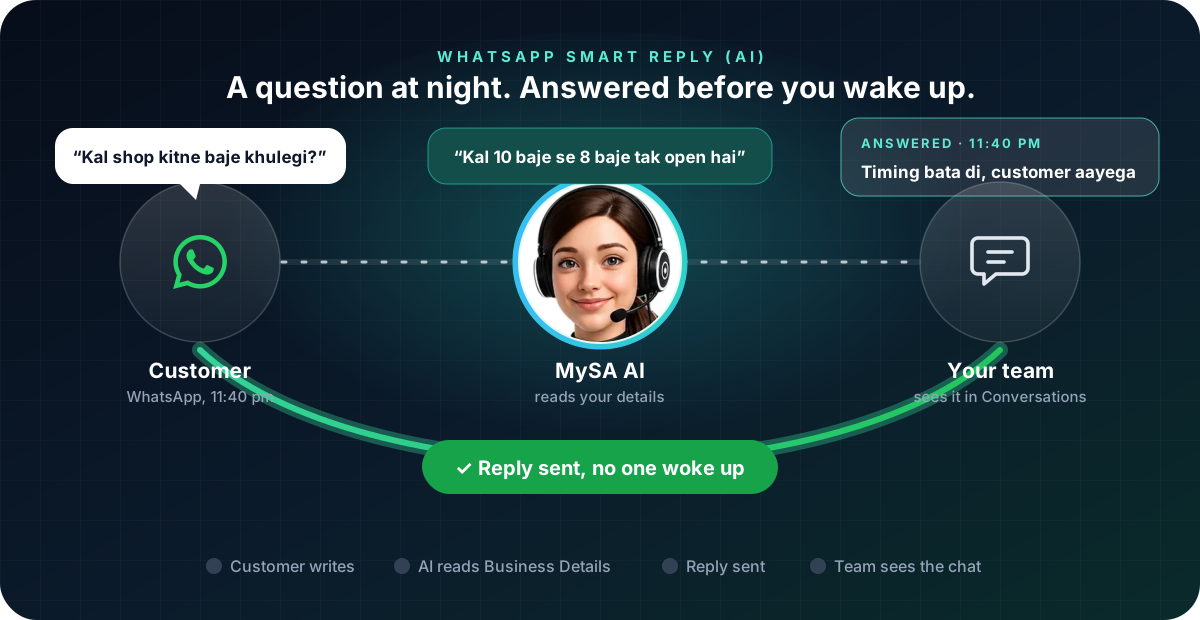
WhatsApp smart reply is used for two different things. In the WhatsApp app itself, it usually means AI suggested replies: the app offers a few lines and you tap the one you want to send. For a business, smart reply can also mean an AI that answers the customer on its own, from information you gave it. MySA Business does the second: Smart reply (AI) answers each message on your business WhatsApp number from your Business Details, in the customer's language.
Two meanings of "smart reply"
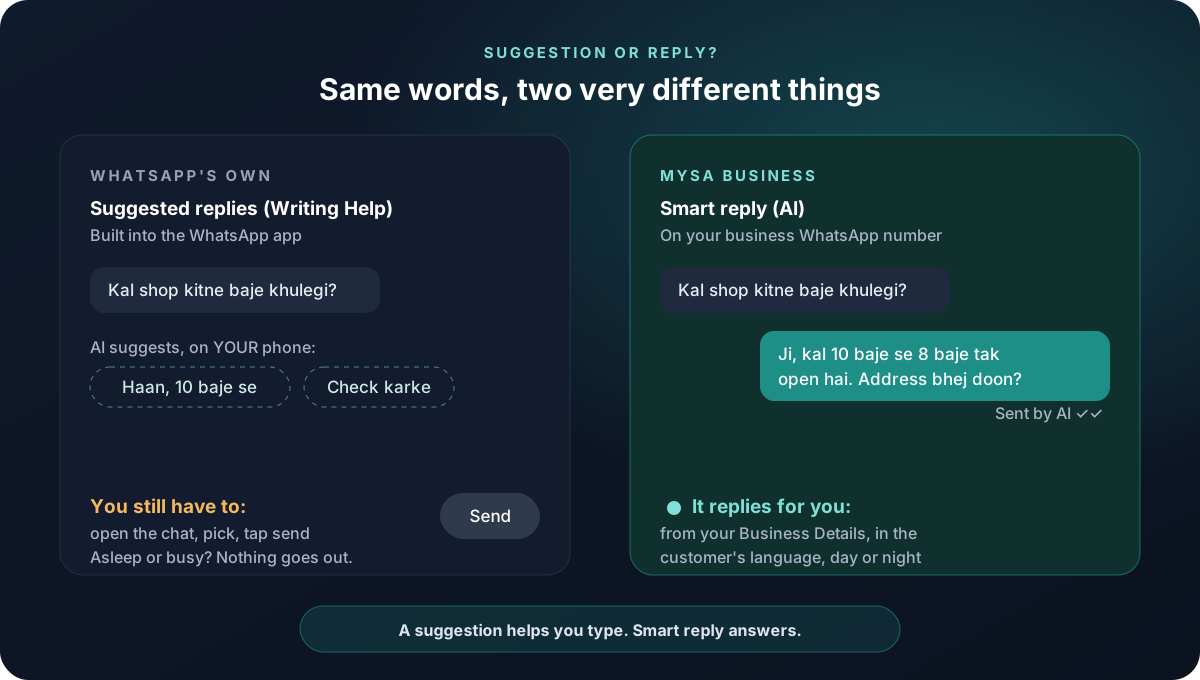
| Suggested replies in the WhatsApp app | Smart reply (AI) on MySA Business | |
|---|---|---|
| Who sends the reply | You, after picking a suggestion | The AI, on its own |
| Where the answer comes from | The conversation on your phone | Your Business Details, plus Today's update |
| When nobody is at the phone | Nothing is sent | The customer still gets an answer |
| Best for | Typing faster in your own chats | Answering the same customer questions all day |
WhatsApp added AI reply suggestions to its Writing Help tool in 2026, and features like this roll out by country and app version, so what you see on your own phone may differ. Check WhatsApp's own help pages for what is available to you. The point for a business owner is simple: a suggestion still needs you to open the chat and send it.
Why a shop needs the second kind
Most WhatsApp messages to a small business are the same few questions: timings, price, address, "stock hai?", "delivery karte ho?". They arrive at night, during lunch, and while you are with another customer. A suggestion does not help when you are not looking at the phone. An answer that goes out on its own does.
Example
Customer (11:40 pm): Kal shop kitne baje khulegi?
AI: Ji, kal 10 baje se 8 baje tak open hai. Address bhej doon?
Customer: Haan bhej do.
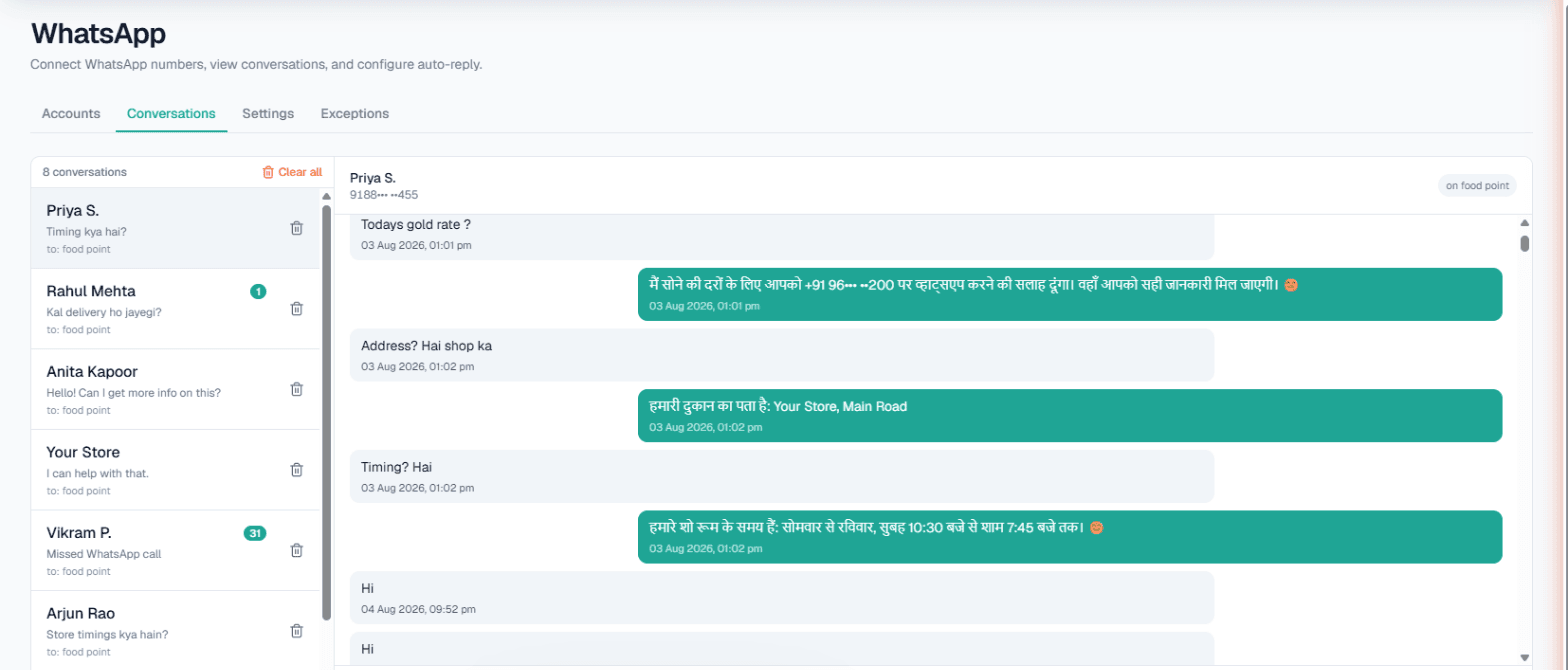
The shop is made up. In the morning your team sees the whole chat in WhatsApp → Conversations and can take over by hand at any point.
How Smart reply (AI) works on MySA
Connect your WhatsApp number under Channels → WhatsApp with a pairing code or a QR code, and pick the Business category it answers from. Then, in WhatsApp → Settings, turn on Smart reply (AI) for that number. For each number you can set:
- What this number should do: the goal for every chat, such as asking for a name or booking a visit.
- Today's update: anything true only today, such as "Open 9 AM–5 PM today". The AI uses it on top of your Business Details.
- Wait after last message: how many seconds to wait so the AI answers everything the customer sent at once (3 by default, up to 30).
- Business hours only (9am–9pm): tick it if you do not want replies at night.
- Reply to voice notes: the AI cannot listen to voice notes, so a customer who sends only one gets this message instead.
- Live data in replies: your own APIs from Integrations → My APIs, so the AI can answer what changes daily, like today's rate. See Custom APIs.
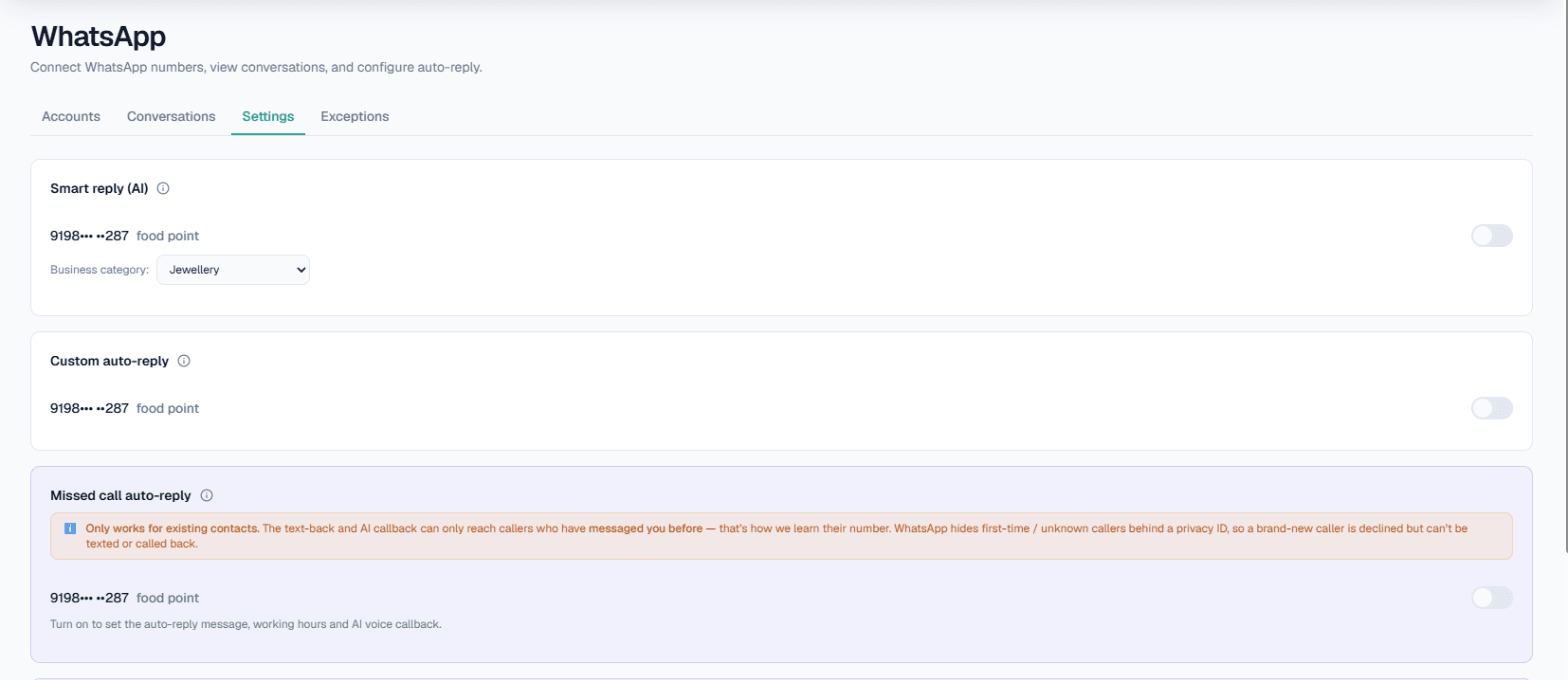
Numbers you list under WhatsApp → Exceptions, such as your own family's, never get an automatic reply. The full setup is in the WhatsApp docs.
Smart reply, auto-reply and missed calls
The same Settings tab has three neighbours. Each does a different job:
- Custom auto-reply sends one fixed message, used when the AI is off or as a fallback. More in WhatsApp auto reply for business.
- Missed call auto-reply declines a WhatsApp call and texts the caller back, or has the AI call them back. See WhatsApp missed call auto reply.
- WhatsApp Auto-Call places an AI voice call right after a customer messages, for workspaces it is enabled for.
How all of these fit together is on the WhatsApp AI automation page.
What works today, and what it does not do
| Works today | Does not do |
|---|---|
| Answering each message from your Business Details, in the customer's language | Answer from information you did not give it |
| Using Today's update for what is true only today | Listen to voice notes |
| Answering daily-changing facts through your own APIs | Know your stock or rates unless your API says so |
| Leaving numbers on your Exceptions list alone | Answer WhatsApp calls; those go to Missed call auto-reply |
These are scenarios, not customer stories.
Getting started
- Create a workspace and fill in your Business Details: timings, prices you quote, address, delivery areas and the questions customers ask most.
- Top up your Live wallet. WhatsApp AI replies run on your Live workspace, and the WhatsApp page tells you if anything else is needed before you can connect.
- Connect your WhatsApp number and turn on Smart reply (AI) in WhatsApp → Settings.
- Send it a message from another phone, the way a customer would, and read the answer.
A connected number is disconnected if your Live wallet stays at zero for 24 hours in a row. If WhatsApp is locked in your menu, it is not switched on for your workspace yet; talk to sales.