
To call Facebook leads instantly, send every Lead Ads form fill to a webhook and let an AI voice assistant dial the lead as soon as it arrives. In MySA Business, a webhook campaign does this: each new lead posted to its webhook URL is called by the AI, usually within about a minute, from your own business number, with a daily cap per customer, a minimum gap between calls, your DND hours and your wallet balance all respected.
This guide walks through why speed matters, how the connection works, how to set it up step by step, and what to check before you spend more on ads.
Speed to lead: why the first minute matters
Speed to lead is the time between the form fill and your first call. Right after submitting, the person is still holding their phone and thinking about your ad; an hour later they are busy, or talking to a competitor who called first. Leads arrive at night, on Sundays and in bursts, so most teams cannot keep that gap short. An AI call within a minute reaches them while the interest is fresh, at any hour your DND settings allow.
How a Facebook Lead Ads auto call works
The chain has four links:
- The form is filled. A customer submits your Lead Ads instant form with their name and mobile number.
- The lead is posted to MySA. Your ad setup, or a connector you already use, posts each new lead as JSON to your webhook's URL, with a secret that proves it is from you.
- The webhook campaign picks it up. It reads the mobile number, name and message from the fields you mapped.
- The AI calls. As soon as the lead's short summary window closes, the AI dials in the call language and with the purpose you chose.
MySA does not pull leads from Facebook by itself; something has to post them to the webhook URL. Anything that can send an HTTPS POST with JSON will do, and if it can only paste a URL without headers, the secret can be added to the URL instead.
Setting up the webhook campaign
Create the webhook
- Open Integrations → Webhooks and click New webhook.
- Copy the URL and the secret. The secret is shown only once, so keep it safe; Rotate secret replaces it if it is lost.
- Each webhook has a Test URL and a Live URL. Use the Test URL while you build.
Map the fields
- Submit one real test lead so its fields reach the webhook. The status light goes from red (Awaiting first event) to green (Awaiting mapping).
- Pick which field is the mobile number and which is the message text; both are required. Name, customer ID and language are optional. For a form, the message text can be the answer to a question such as "What are you looking for?"
- Click Save & activate. Only an Active webhook can be attached to a campaign.
Attach the campaign
- In Campaigns, create a campaign of the Webhook type and choose your webhook as the source.
- Choose the assistant, the purpose and the call language.
- Set the per-customer limits and decide whether to also call leads that arrived before the webhook was attached, or only new ones.
- Publish and run it.
The full reference is in the campaigns documentation, and the overview is on the webhook campaigns page.
The limits that keep it polite
| Control | What it does |
|---|---|
| Daily cap per customer | 1 to 10 calls to the same number per day, default 2 |
| Minimum gap | At least 60 minutes between two calls to the same number, up to 1440 |
| Summary window | Leads or messages from the same number within a few seconds (30 by default) are merged into one call |
| DND hours | A call that falls inside your DND window is held until it ends, not lost |
| Wallet | Calls are paid from your prepaid wallet, with no subscription |
The cap and the gap matter when the same person fills two of your forms in a day, which happens more often than you would expect with several ads running. Make sure you have the customer's permission to call; a Lead Ads form that clearly asks for a callback helps.
What the AI says on the call
The call's purpose decides the goal: qualify the lead, book a visit, explain a plan, or simply confirm interest. The AI answers questions only from your approved Business Details, so it will not quote a price you have not given it.
Example
A form fill arrives at 7:15 am from a "spoken English weekend batch" ad. The AI calls within about a minute, in Hinglish.
AI: Good morning Priya ji, aapne abhi spoken English weekend batch ke liye form bhara tha. Do minute baat kar sakte hain?
Priya: Haan. Batch ki timing kya hai?
AI: Weekend batch Saturday aur Sunday subah hota hai. Aap beginner level se start karna chahenge?
Priya: Haan, aur fees bhi batayiye.
AI: Fees aapke level ke hisaab se hai, main bata deti hoon. Kya aap ek demo class ke liye time bhi fix karna chahenge?
The batch and timings are illustrative; the AI would answer from your own Business Details. If Priya says "call me after 6", a follow-up is scheduled for then, in the same language.
After the call
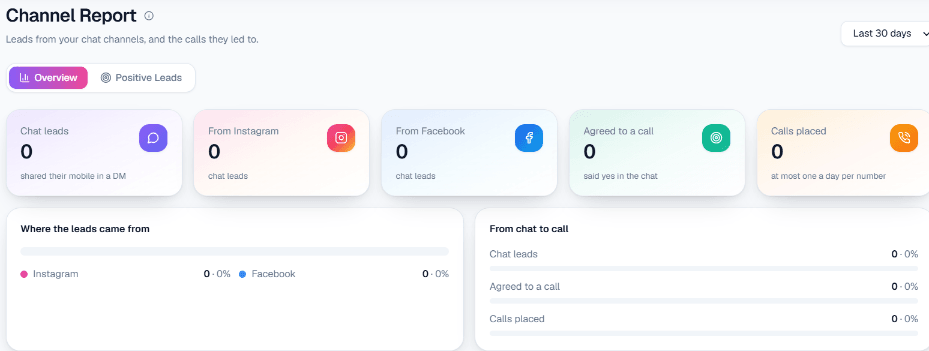
Every call gets a recording, an AI summary, sentiment and tags. Calls that did their job appear as Positive Leads, and Lead Feed can deliver them by email, Google Sheet, webhook or API, so your sales team works the warm leads first instead of re-dialling every form. How leads are judged is explained on AI lead qualification.
Facebook leads also come as Messenger chats and Page comments, which need an answer rather than a call. Those are covered on the Facebook automation page, and chats can become calls through intent-based calling when the customer agrees.
Before you scale your ad spend
- Use Try now and a test lead to hear the call yourself, in the language your customers speak. In the Test workspace, only numbers on your Test Numbers list are actually dialled.
- Verify your mobile to get ₹100 of Test credit for this.
- Check the summary and tags of your test calls, and adjust the purpose until the call ends where you want it.
- Then switch the source to the Live URL and go Live.
The Facebook lead automation page shows how Lead Ads, Messenger and comments fit together.