
Developers
API Keys
API keys let your own systems call the MySA API on behalf of one workspace, for example to push contacts into a running campaign.
How keys work
An API key belongs to exactly one workspace. Your Test workspace and your Live workspace each have their own keys, so a Test key only ever reaches Test data and a Live key only ever reaches Live data.
Every request sends two values together:
| Header | Value |
|---|---|
X-Org-Id | The Org ID of the workspace the key was created in |
X-Api-Key | The full key, which starts with mysa_ |
The two must match. A valid key sent with another workspace's Org ID is refused, and the Org ID is also what selects Test or Live.
Note: You need the API key access granted by the workspace Owner to open the API Keys tab. Creating and revoking keys is for the Owner or an Admin. See Team & roles.
Find your Org ID
Your Org ID is shown in two places:
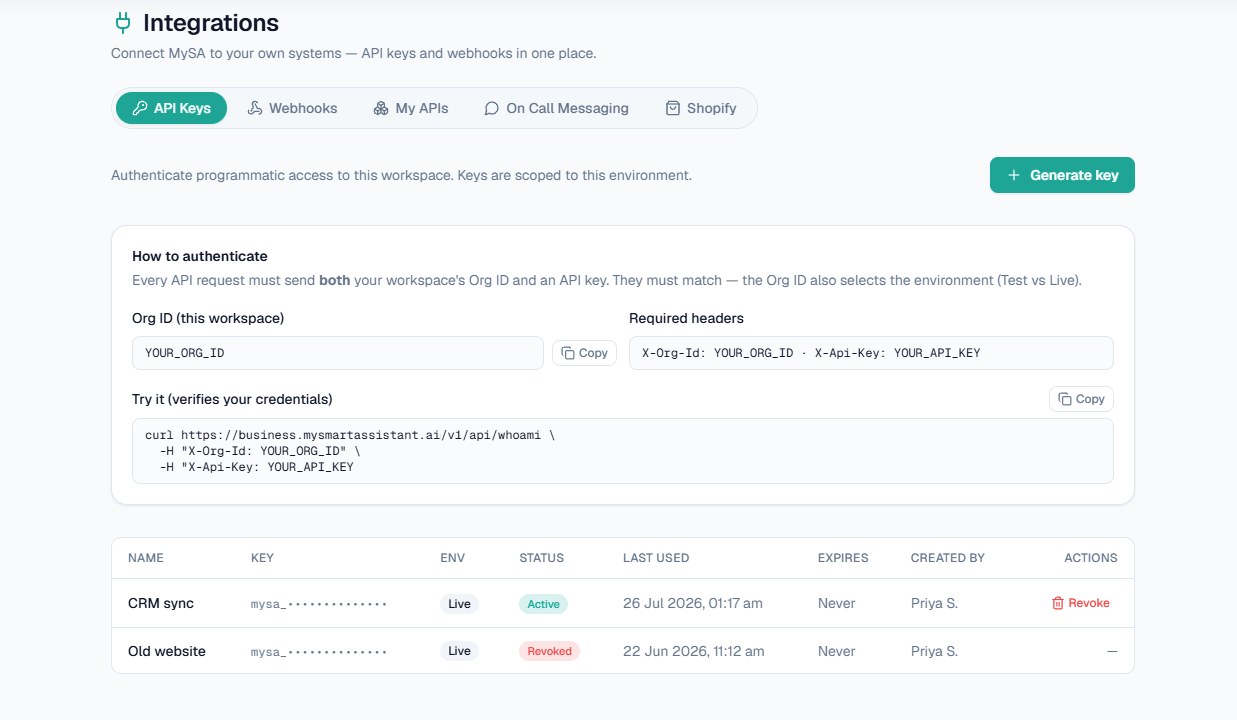
- On the API Keys tab, in the How to authenticate box, under Org ID (this workspace), with a Copy button.
- On the Settings page, Account tab, under Workspace identifiers.
Switch Test/Live in the top bar first. Each workspace has its own Org ID.
Create a key
- Switch to the workspace (Test or Live) the key is for.
- Open Integrations from the left menu and choose the API Keys tab.
- Click Generate key.
- Enter a Name (up to 120 characters), for example
Production server. - Optionally fill Expires in (days) — optional. Leave it blank for a key that never expires. The allowed range is 1 to 3650 days.
- Click Generate key.
- Copy the key from Your API key and store it somewhere safe, then click Done.
Warning: The full key is shown once. MySA stores only a hash of it, so it cannot be shown again. If you lose it, revoke it and generate a new one.
Verify your credentials
GET /v1/api/whoami confirms that an Org ID and key work together. The API is served from the same host as the console: https://business.mysmartassistant.ai.
curl https://business.mysmartassistant.ai/v1/api/whoami \
  -H "X-Org-Id: org_123" \
-H "X-Api-Key: YOUR_API_KEY"{
"data": {
"organizationId": "org_123",
"organizationName": "Acme Motors",
"environment": "test",
"scopes": ["assistant.read", "assistant.run", "campaign.read", "campaign.run"],
"authenticatedAs": "api_key"
}
}environment is test for a Test workspace and production for Live. The Try it (verifies your credentials) box on the tab gives you this command with your Org ID already filled in.
Push calls into a campaign
The main thing a workspace key does is add contacts to a campaign you have already created and published.
curl -X POST https://business.mysmartassistant.ai/v1/api/campaigns/CAMPAIGN_ID/calls \
  -H "X-Org-Id: org_123" \
  -H "X-Api-Key: YOUR_API_KEY" \
  -H "Content-Type: application/json" \
  -d '{
    "contacts": [
      {
        "destination": "9876543210",
        "countryCode": "91",
        "customerName": "Ravi Kumar",
        "customerId": "CRM-1042",
        "userQuery": "Asked about EMI options for the blue scooter"
      }
    ]
}'| Field | Required | Rules |
|---|---|---|
destination | Yes | Digits only, 6 to 14 digits, without the country code |
customerName | Yes | 1 to 160 characters |
countryCode | No | 1 to 4 digits, no +. Defaults to 91 |
customerId | No | Up to 50 characters, your own reference |
language | No | Up to 40 characters. Overrides the campaign's language for this contact |
userQuery | No | Up to 2000 characters. Given top priority in the call |
You can send 1 to 5000 contacts per request. The campaign must already be published and running, otherwise the request is refused rather than silently held. See Campaigns.
Note: A CRM partner's business cannot use this route. It places calls with POST /v1/api/calls instead. See Partner API.
Scopes
Each new key gets a fixed, safe set of scopes. A key can read and run the calling product, but it cannot change members, billing, settings or other keys.
| Scope | What it allows |
|---|---|
assistant.read | Read assistants |
assistant.run | Run assistants |
campaign.read | Read campaigns |
campaign.run | Push calls into a campaign by id |
calllog.read | Read call logs |
calllog.export | Export call logs |
analytics.read | Read analytics |
number.read | Read numbers |
businessfile.read | Read Business Details files |
wallet.read | Read the wallet |
A key can only reach endpoints that are explicitly opened to API keys. Any other endpoint answers 403 API_KEY_FORBIDDEN, even if the key holds a matching scope.
The keys table
The table on the API Keys tab lists every key in this workspace:
| Column | Shows |
|---|---|
| Name | The name you gave it |
| Key | A masked key, such as mysa_1a2b3c4d_•••••••• |
| Env | Test or Live |
| Status | Active, revoked or expired |
| Last used | When a request last authenticated with it, or Never |
| Expires | The expiry date, or Never |
| Created by | The person who generated it |
Requests made with a key act as the person who created it, so audit records stay tied to a real user.
Rotate a key
There is no in-place rotate for workspace keys. To rotate safely:
- Generate a new key.
- Deploy the new key to every system that uses the old one.
- Check Last used on the old key to confirm nothing still calls with it.
- Revoke the old key.
Setting an expiry when you create a key forces this habit: an expired key stops working on its own.
Revoke a key
- Find the key in the table and click Revoke.
- Confirm with Revoke key.
The key stops working immediately and any caller using it starts failing. This cannot be undone. Revoke a key straight away if it has been exposed, then generate a replacement.
Errors
Errors come back as { "error": { "code", "message", "requestId" } }.
| Status | Code | Meaning |
|---|---|---|
| 401 | AUTH_REQUIRED | The key is missing, wrong, revoked or expired, or does not belong to the X-Org-Id you sent |
| 403 | API_KEY_FORBIDDEN | This endpoint cannot be accessed with an API key |
| 403 | PERMISSION_DENIED | The key lacks a scope this endpoint needs |
Related
- Webhooks to send leads into MySA without a key
- Custom APIs to let the assistant read your own data
- Partner API for CRM partners managing many businesses