

Account
Wallet & pricing
MySA is prepaid: you add money to a wallet, and each call is paid for from it at your per-minute rate, with very short calls free.
Your workspace's rate is shown in the console under Wallet; for the best price for your volume, contact sales. Some businesses are on pulse pricing instead, charged per started pulse (see FAQ).
Test and Live wallets
You have two separate wallets, switched with the Test/Live switch in the top bar.
- Test gets ₹100 of welcome credit once the workspace owner verifies their mobile number from Profile (a code by SMS; one number can claim it once). It is never topped up.
- Live starts at ₹0. Top it up before calling. All recharges go to the Live wallet.
Open Billing to see your balance, the Passbook of every credit and charge, and your Invoices.
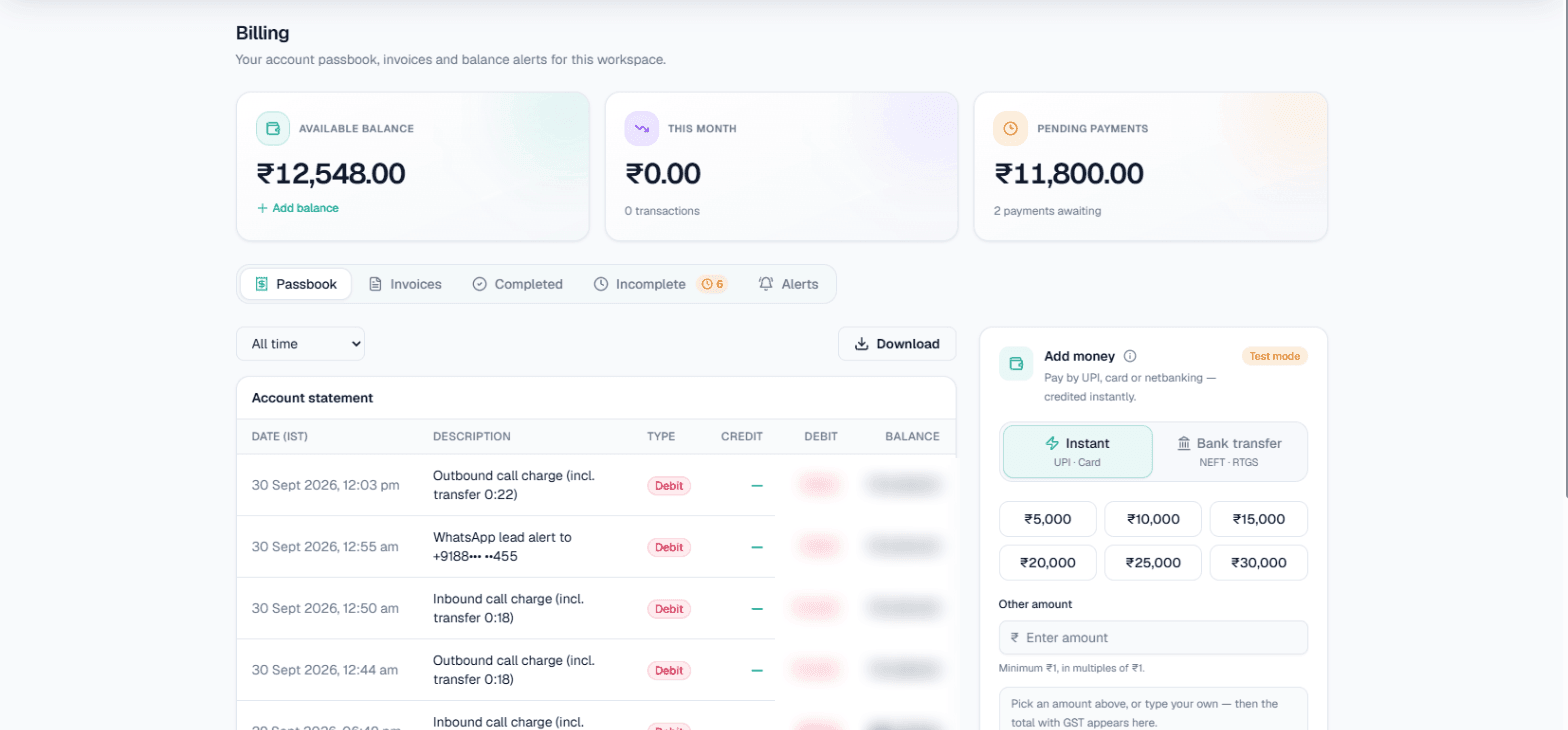
On this screen: the cards at the top show your Available balance (with Add balance), what was spent This month, and Pending payments still awaiting. The tabs switch between Passbook, Invoices, Completed, Incomplete and Alerts; the Passbook's Account statement lists each entry with its date, description, type, credit or debit and the running Balance for the period you pick, and Download exports it. Add money sits on the right.
Add money
There are two ways to top up your Live wallet.
Add money: Instant (online)
- On Billing, find the Add money card and keep Instant selected.
- Pick ₹5,000, ₹10,000, ₹15,000, ₹20,000, ₹25,000 or ₹30,000, or type your own amount under Other amount (the minimum and the step are shown under the box).
- Press Pay and pay by UPI, card or netbanking.
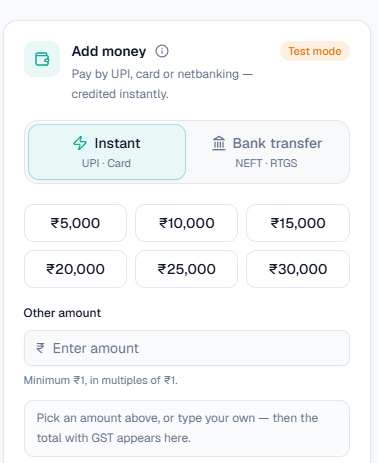
On this screen: the Add money card with Instant (UPI, card) selected. Tap one of the preset amounts or type your own under Other amount; the minimum and the step are shown under the box. The total with GST appears at the bottom once you have picked an amount.
The amount you choose is what is credited. GST at 18% is added on top and is never added to your balance: for ₹5,000 you pay ₹5,900. Your balance updates as soon as the payment is confirmed.
Tip: If you see "Payment processing", the payment is being confirmed. You can leave the page. Do not pay again. A failed payment adds nothing, so you can simply try again.
Add money: Bank transfer
Click Request payment, enter the amount and your contact details. We email you a GST invoice with our bank details. Transfer the total, then upload the payment screenshot on your request. Your wallet is credited once our team verifies the payment.
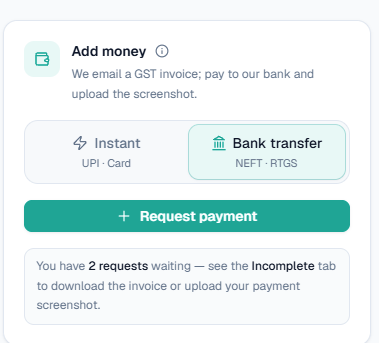
On this screen: the Add money card with Bank transfer (NEFT, RTGS) selected, which explains the route: we email a GST invoice, you pay to our bank and upload the screenshot. Request payment starts a new request, and the note below counts the requests still waiting and points you to the Incomplete tab to download the invoice or upload your payment screenshot.
Both routes need complete billing details first. See Invoices & GST.
Completed and incomplete payments
The Completed tab on Billing lists every top-up that reached your balance.
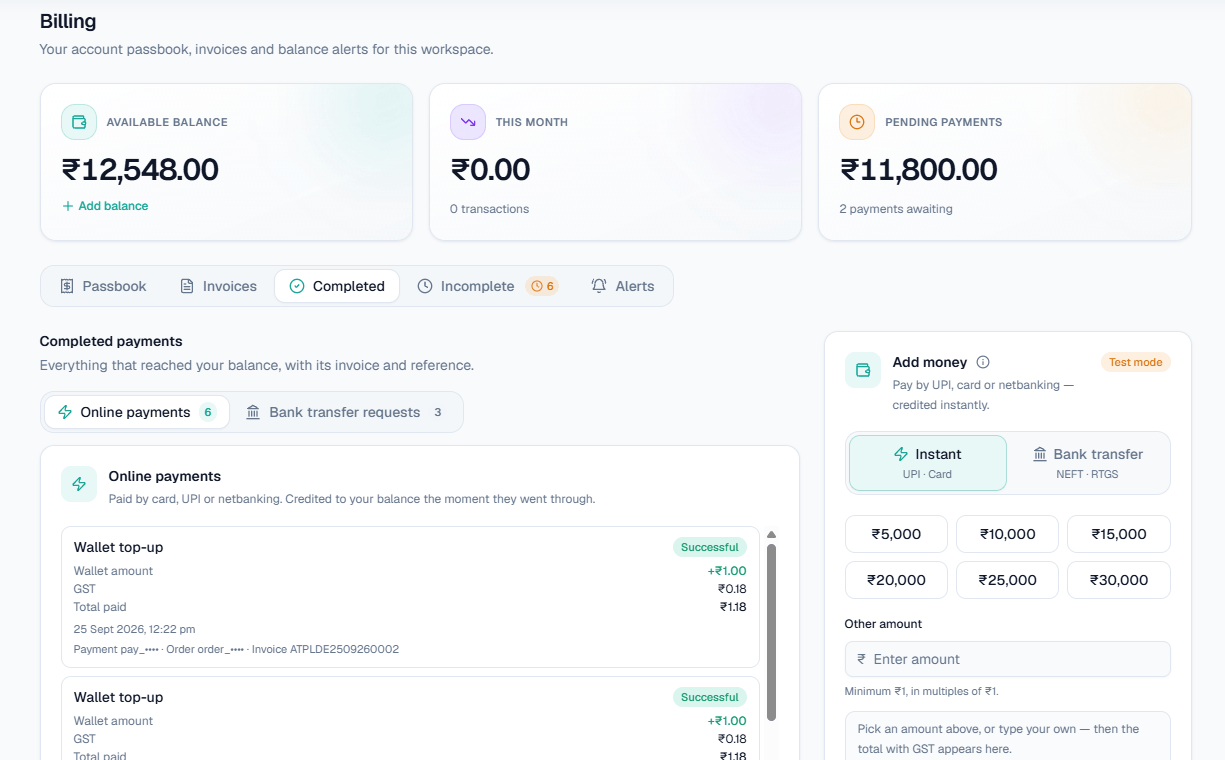
On this screen: Completed payments is split into Online payments and Bank transfer requests, each with a count. Every Wallet top-up shows the wallet amount, the GST, the total paid, the date and the payment, order and invoice references, with a Successful badge.
The Incomplete tab lists anything you started that has not been added to your balance yet.
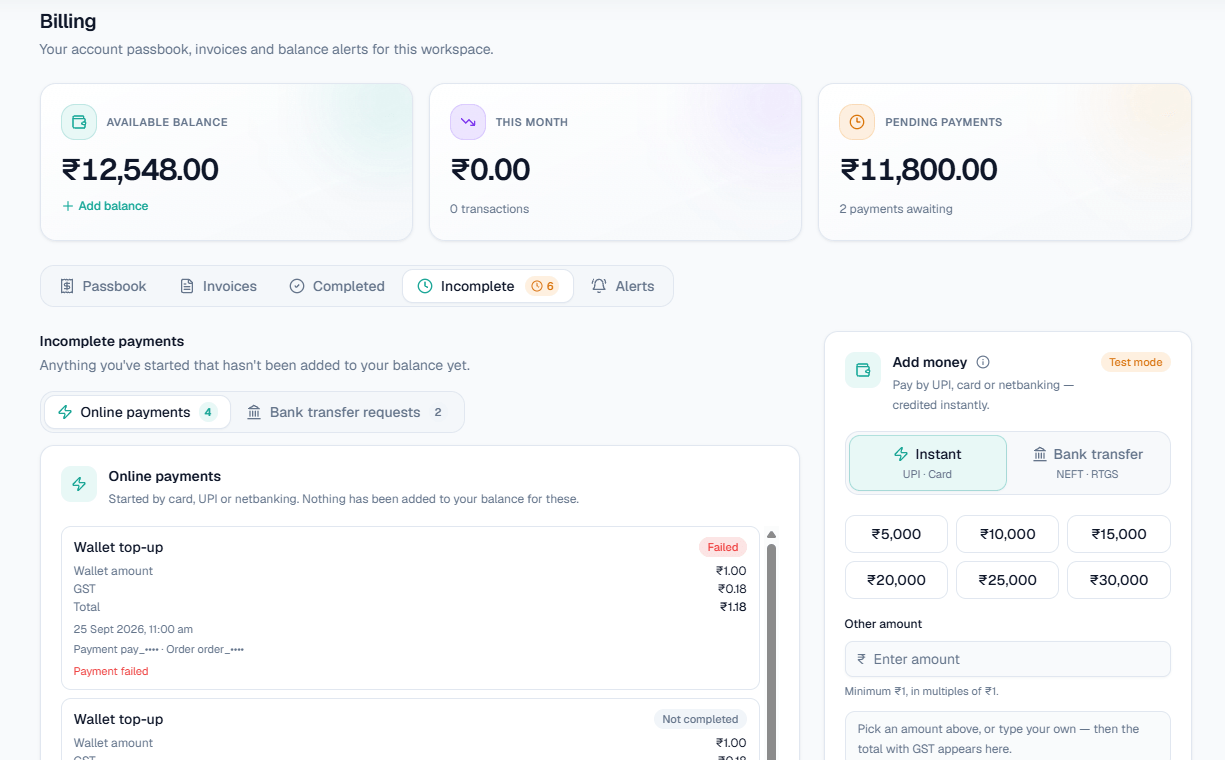
On this screen: Incomplete payments is split the same way into Online payments and Bank transfer requests, and the tab itself carries a count. Each top-up shows its amounts, date and references with a badge such as Failed or Not completed; nothing has been added to your balance for these.
How calls are charged
Calls are charged per started minute at the per-minute rate set for your workspace.
| Call length | Charged as |
|---|---|
| 0–10 seconds | Free |
| 11–59 seconds | 1 minute |
| 60 seconds | 1 minute |
| Every started minute after that | 1 more minute (61 seconds is 2 minutes) |
An 11-second call is charged a full minute, not 1 second. Each call's detail shows its cost and Charging method.
Inbound calls, missed-call callbacks and WhatsApp Auto-Calls are charged from the same wallet like any other call.
Reservation and settlement
Before a call dials, its maximum possible cost is held from your balance. When the call ends, it settles to the actual charge and the rest is released. A call that has started can never take you below zero.
Your balance also decides how long a call may run. If it covers two minutes, the call is set to end after two minutes rather than being refused or cut off mid-sentence.
When the balance runs low
- If the balance will not cover even one billable minute, a Live call waits in the queue and dials on its own once you top up.
- If it is still unfunded after 10 minutes, it is cancelled with the reason shown in Call Logs. A cancelled call does not dial later, so create it again.
- In Test, a call with no balance is dropped straight away.
- Inbound calls are not answered while the balance is empty.
- A WhatsApp number is disconnected after the Live wallet has been empty for 24 hours in a row. See WhatsApp.
Note: Low-balance alert emails start once you have topped up at least once.
Low-balance alerts
Set up your warnings on the Alerts tab of Billing.
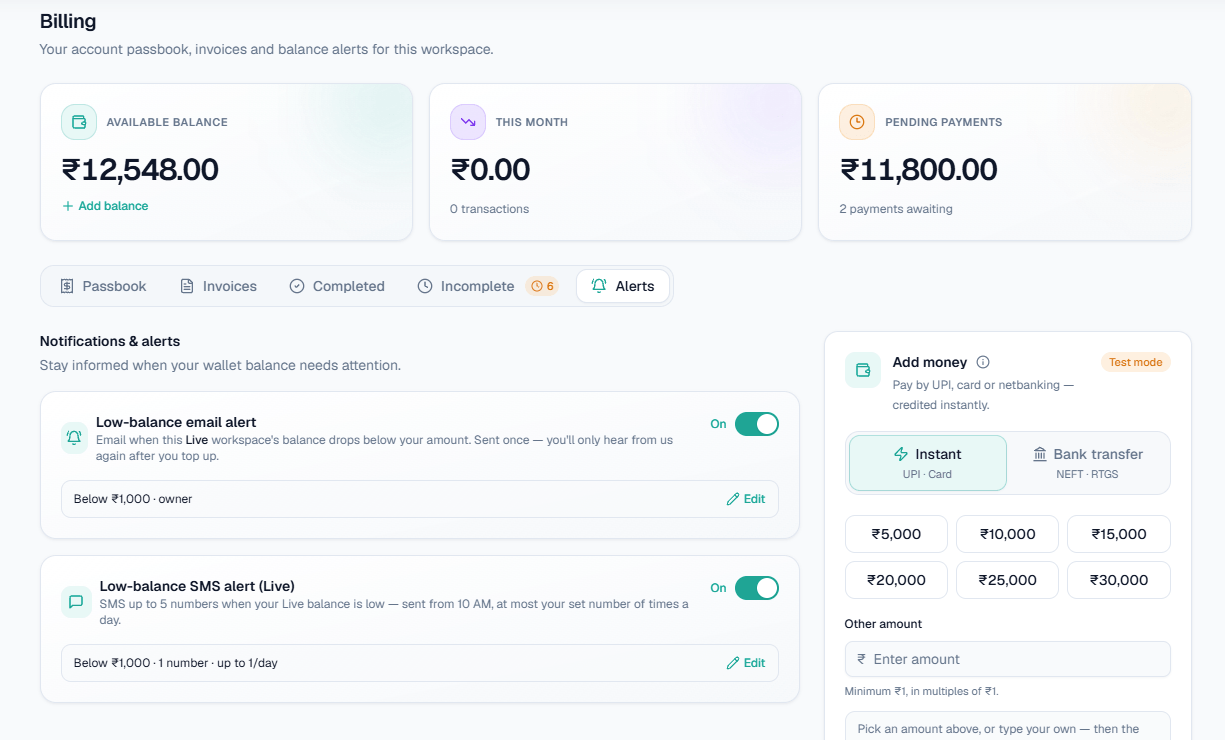
On this screen: Notifications & alerts holds two switches. Low-balance email alert emails you when the Live workspace's balance drops below your amount, once until you top up again; Low-balance SMS alert (Live) texts up to 5 numbers when the Live balance is low, from 10 AM, at most your set number of times a day. Each shows its current threshold and recipients, with Edit to change them.
Transfer minutes
When a call is transferred to a person on your team, the transferred time is billed separately from the AI's part, at its own rate. The Call transfer page shows what your workspace pays. See Call transfer.