
Calling
Inbound calls
Inbound calling lets your AI answer when a customer rings one of the numbers you bought, using your Business Details to quote prices and answer questions.
What inbound is
Most of MySA Business is about the AI calling your customers. Inbound is the other direction: a customer rings your business number and the AI picks up. It answers from the Business Details category you choose, in the same way it does on outgoing calls, so it can quote prices, share timings and answer common questions.
You switch inbound on per number, so you can have one number answered by the AI and keep another for your own staff.
Before you start
- A number of your own. The Inbound page appears under Phone system in the left menu once your workspace holds a number you bought. See Numbers and caller ID.
- Your Live workspace. Inbound works in Live only.
- At least one live Business Details category. See Business Details.
- Wallet balance. Inbound calls are charged from your wallet like any other call. If the balance is empty, the call is not answered.
Switch inbound on for a number
- Open Phone system → Inbound.
- Click Set up inbound on the number you want.
- Fill in the details:
- Business knowledge: the Business Details category the AI answers from.
- AI instructions: what the AI should do on these calls. You can pick a saved purpose here.
- Language: the language the AI speaks.
- Max call length: caps what one call can cost.
- Conversation settings: whether to Stick to the chosen language, and whether to Call customers back when they ask.
- Click Switch on. (On a number that is already answering, the same button reads Save details.)
If something required is missing, the panel tells you what, next to the button.
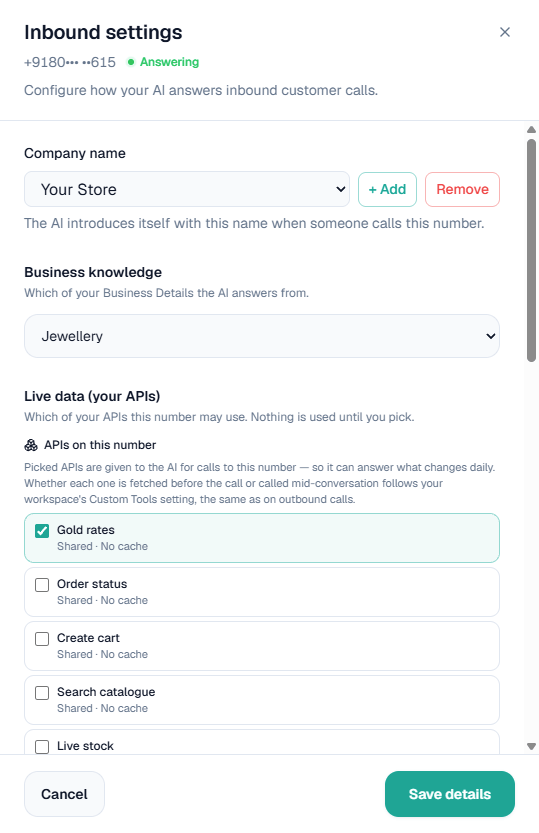
On this screen: the Inbound settings panel for one number, here already Answering. Company name is the name the AI introduces itself with when someone calls (+ Add and Remove manage the names), Business knowledge is the Business Details it answers from, and Live data (your APIs) lists your APIs to tick under APIs on this number. Save details saves the panel.
Note: There is no campaign behind an incoming call, so these settings are the whole brief. Write the AI instructions with that in mind. They accept up to 5,000 characters.
Conversation settings explained
- Stick to the chosen language. Leave this off and the AI follows whichever language the caller uses.
- Call customers back when they ask. If a caller asks to be called back, MySA places that call automatically. It is charged as a normal outgoing call. Leave this off and the AI will not promise a call back.
Live data from your own APIs
If you have registered your own APIs under Integrations → My APIs, you can attach them to the number so it can answer questions like today's rate. See Custom APIs.
Change or switch off
- Edit the details at any time with Configure. Saving never interrupts a number that is already answering.
- Switch off stops calls being answered on that number, but your settings are kept for next time.
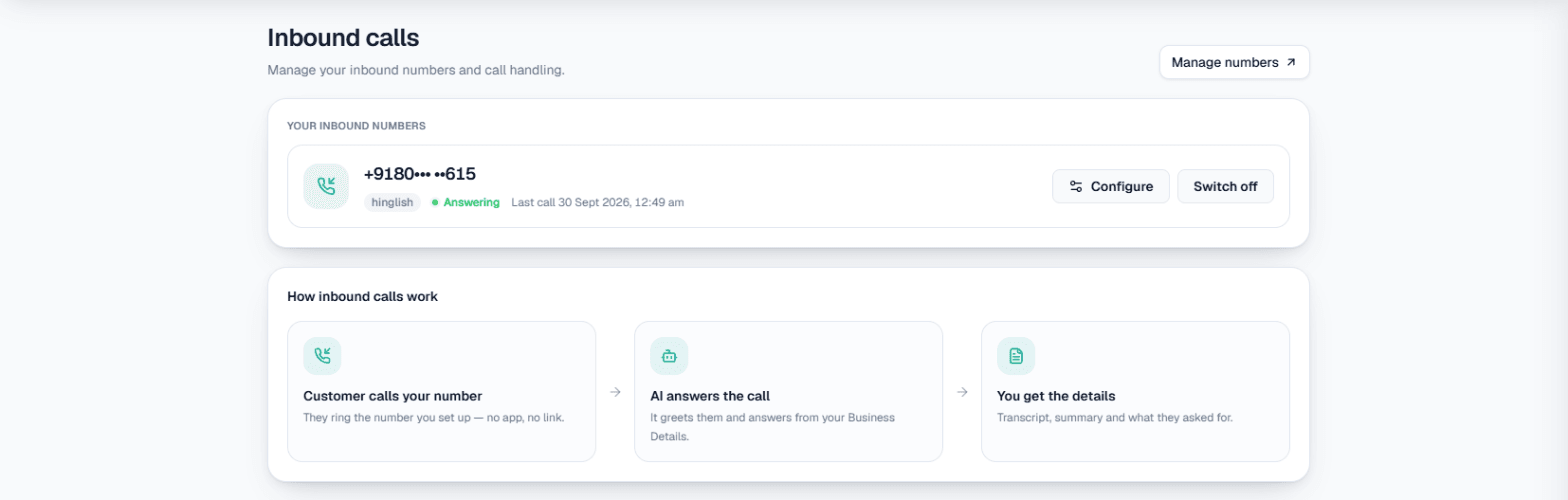
On this screen: Your inbound numbers lists each number with its language, whether it is Answering and when it last took a call; Configure opens its settings and Switch off stops it answering. Manage numbers at the top right opens your numbers, and How inbound calls work sums up the three steps: the customer calls your number, the AI answers, and you get the details.
Related settings
- DND can block inbound calls during your quiet hours. Inbound is not blocked by default. See DND.
- Call transfer can hand an inbound caller to a person on your team when they ask for one. See Call transfer.
- Inbound calls appear in Call Logs and Detailed Report alongside your outbound calls, and you can filter by direction. See Call logs.
- The overview, AI inbound call answering, shows how inbound fits with appointments, callbacks and transfer.