

Account
Team & roles
Invite teammates to your workspace and decide, section by section, what each of them can see and change in Test and Live.
Who manages the team
Team sits under Business in the menu and is visible to the workspace Owner only. The Owner invites people, sets their access and removes them. An Owner is never downgraded.
Invite a teammate
- Open Team and click Invite member.
- Enter their Email address.
- Under Workspace, choose Test, Live or both.
- Click Send invitation.
They get an email with a link to join. The dialog also shows the Invitation link so you can share it directly, which is useful if the email does not arrive.
New members join with Home access only. You grant the rest from Team.
Warning: Anyone with the invitation link can join as the invited member. It expires in 7 days.
Pending invites are listed on the Team page, where you can resend or revoke them.
Set what a member can access
Open the member's row menu and choose Manage access.
Access level has three options:
| Level | What it gives |
|---|---|
| Full | Full access to every standard section. |
| Read only | Can view every standard section but not change it. |
| Custom | You choose Off, Read or Full for each section. |
Applies to sets where the access counts: Both workspaces, Test only or Live only.
Standard sections include Campaigns, Follow-ups, Analytics, Call Tags, Purposes, Call Logs, Numbers and Business Details. Channels such as WhatsApp, Instagram and Facebook, and features such as Lead Feed, are listed when they are switched on for your workspace. Some sections open more than one page. For example, Call Logs also opens Detailed Report, Positive Leads and Visit reminders. The dialog says so under each one.
Sensitive sections
Billing, Webhooks and API Keys are sensitive. Full lets a member see them but not change them — only the owner adds money, creates API keys or creates webhooks. Read only does not include them. To let someone do more, choose Custom and set that section on its own.
Tip: Give each person the least access they need. A sales manager reading leads usually needs Read on Call Logs, not Full everywhere.
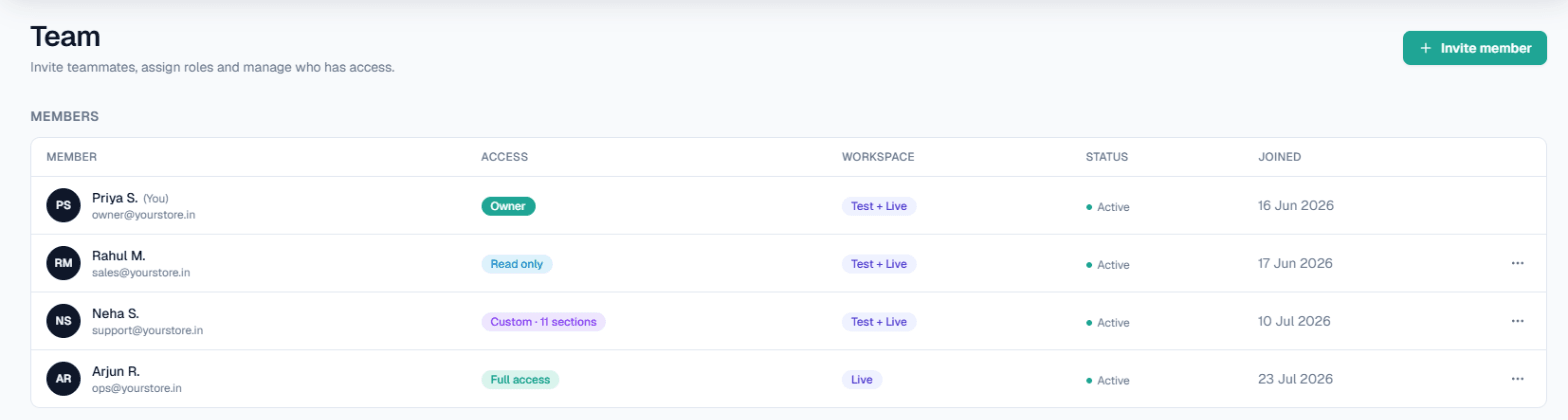
The badge on each row sums it up: Owner, Full access, Read only, Custom with a section count, or No access.
Disable or remove a member
From the row menu:
- Disable member suspends their access. Enable member brings it back.
- Remove member takes them off the workspace immediately. You can invite them again later.
Owner-only items
Some things only the Owner can see or change, and they cannot be granted to anyone else:
- Team
- Broadcasts
- DND
- Call transfer
- Integrations → On Call Messaging
- Integrations → My APIs (Custom APIs)
- Turning the Test environment on or off under Settings → Workspace
- Buying a number through the Vobiz marketplace
When a page is locked
If a menu item is greyed out, you do not have access to it. Ask your Owner to grant it from Team. Read-only members can open a page and see its settings, but buttons that make changes are disabled.
Related
- Invoices & GST for who can see billing.
- API keys and Webhooks, which need their own grant.