

Results
Detailed Report
Every call your workspace placed or answered in one table: filter it, play recordings, download it as a spreadsheet, or send every call to your own server.
What it shows
Open Detailed Report under Calling in the left menu. It lists every call in the workspace: campaign calls, single calls, API and webhook calls, follow-ups and inbound calls, not just one campaign's.
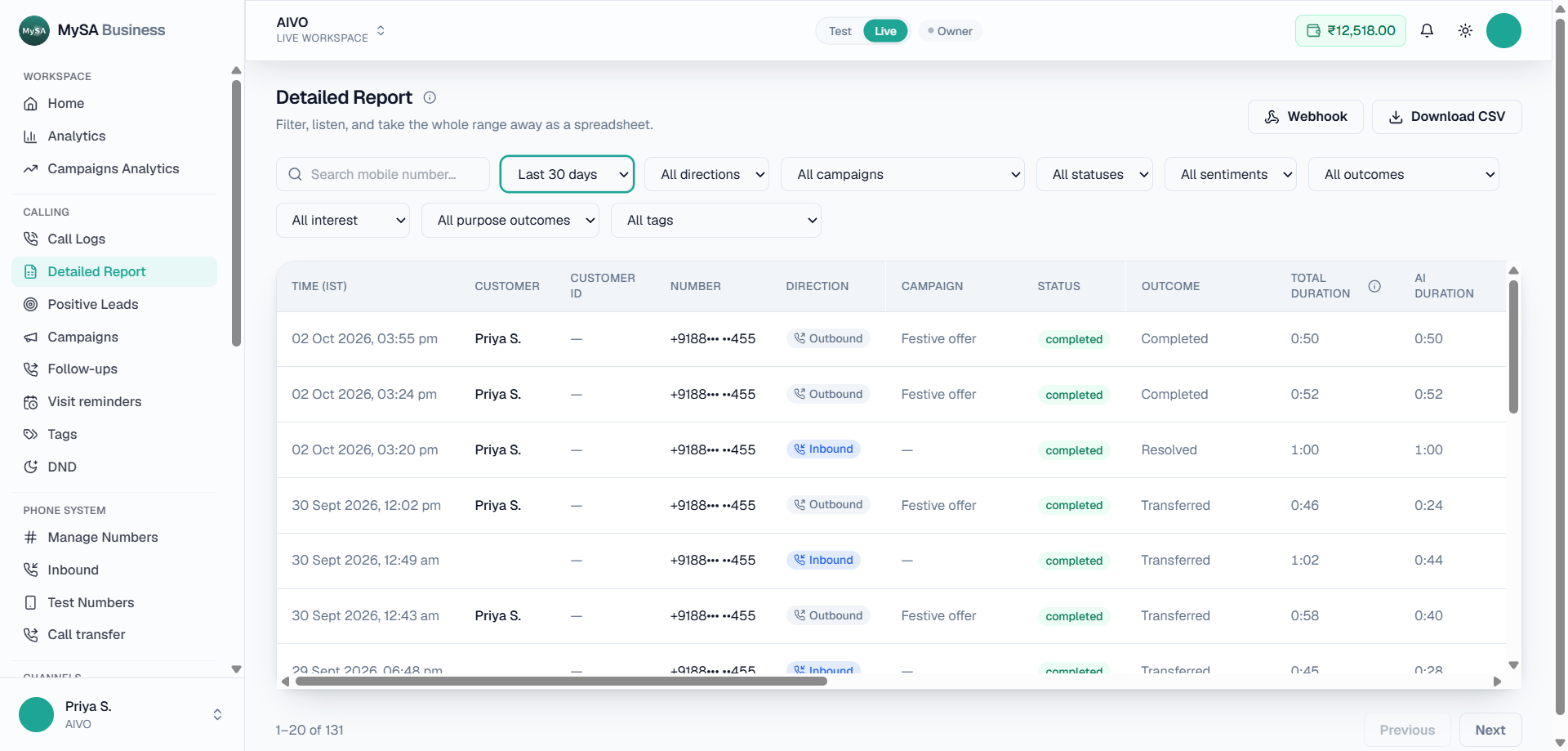
On this screen: the Webhook and Download CSV buttons sit at the top right. Below them are the search box and filters. Each row is one call, with Time (IST), Customer, Customer ID, Number, Direction, Campaign, Status, Outcome and the duration columns; scroll the table sideways for the rest.
- It opens on today. Change the range to the last 7 or 30 days, all time or a custom pair of dates.
- The table shows 20 calls a page and is wider than the screen, so scroll it sideways.
- All times are IST.
Filter and search
| Filter | What it narrows to |
|---|---|
| Search mobile number | One customer's calls. Type the number in any format |
| Date range | Today, last 7 or 30 days, all time, or custom dates |
| Directions | Outbound or inbound |
| Campaigns | One campaign |
| Statuses | Completed, failed, not dialled and so on |
| Sentiments | How the customer sounded |
| Outcomes | What happened on the call, for example transferred or callback requested |
| Interest | The customer's buying interest |
| Purpose outcomes | Whether the call did what it was dialled for |
| Tags | Calls with one of your call tags |
The download uses exactly the filters on screen.
Columns
Each row carries the customer, their number and Customer ID, the direction and campaign, the call's Status and Outcome, then Sentiment, Interest and Purpose outcome, the Tags and Variables (your var1 to var15) and the AI's Summary and Next step.
Total, AI and transfer split
Duration and cost are shown three ways: Total duration and Total cost for the whole call, then the AI's part (AI duration, AI call charges) and the part a person on your team handled after a transfer (Transfer duration, Transfer charges). A call that was never transferred shows "—" in the transfer columns. See Call transfer.
Recordings and call detail
- Each row has a Play button for the recording. Rows without one say "No recording".
- Click a row to open the full call detail with the AI summary.
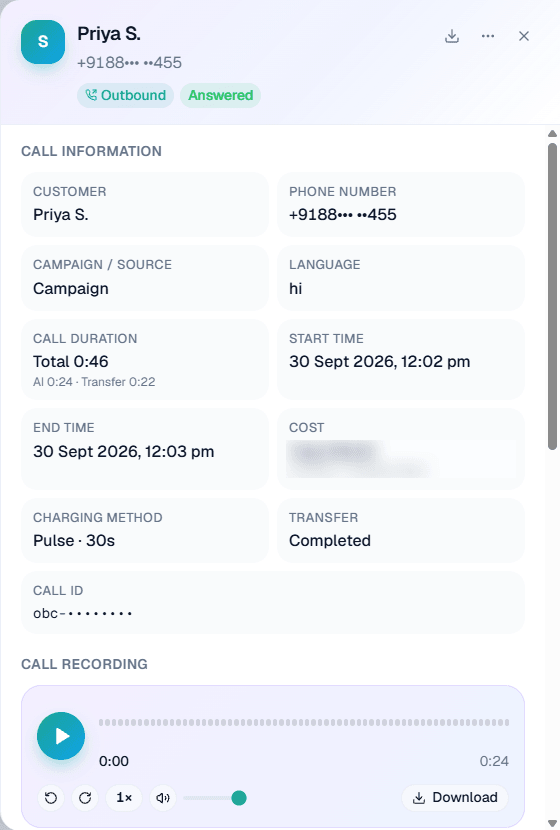
On this screen: the call detail opened from a row. The header shows the customer, the direction (Outbound) and the outcome (Answered); Call information lists the customer, phone number, Campaign / Source, language, start and end time, Charging method, Transfer status and Call ID. Call duration and Cost each show the total with the AI and transfer parts underneath, and Call recording plays the call with skip, speed and volume controls, with Download to save it.
Download CSV
Download CSV gives you the whole filtered range in one file, not just the page on screen, with the same filters and columns. It also carries Tags and Variables (your var1 to var15, each named).
Note: A download holds up to 5,000 calls, so narrow the date range if you need more. It has no recording links, because they expire within minutes. Play recordings from the page, or use the webhook and recordings API below.
Webhook: send every call to your server
The Webhook button sends every call that ends in this workspace (answered or failed) to your own server as it happens. A call that was never dialled (the campaign was stopped or ended, or the customer was reached first) sends no webhook; it shows here as Not dialled. Each message carries the call's details and an API address that returns a signed recording link, valid for 15 minutes, so the audio can play in your own system.
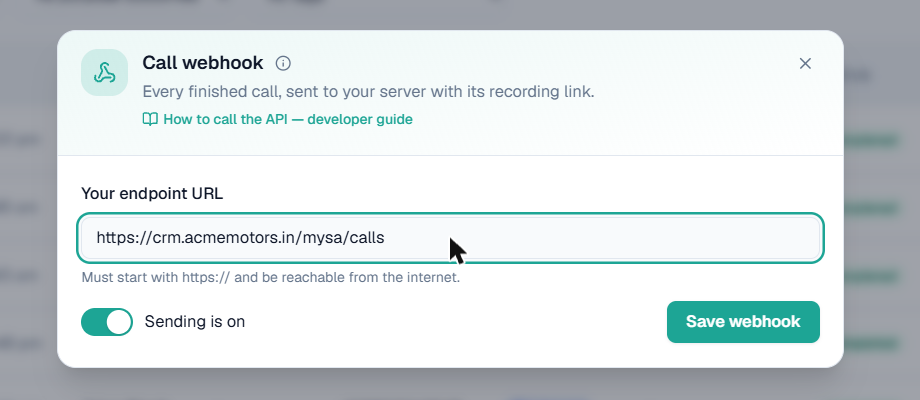
On this screen: the Call webhook panel, opened from the Webhook button. Your endpoint URL takes your server's https address, the Sending is on switch pauses or resumes sending, and Save webhook stores it. How to call the API — developer guide opens the full developer guide.
Set it up
- Click Webhook at the top right.
- Enter Your endpoint URL. It must start with
https://and be reachable from the internet. - Leave Sending is on switched on and click Save webhook.
- Copy the Signing secret that appears. Your server uses it to check that a message really came from MySA. Show displays it again later; Rotate replaces it.
- Click Send test. Your server gets a sample
call.testmessage and the panel shows what it answered.
Calls that end after you switch the webhook on are sent, including campaign test calls (marked as test in the message). Turning it off and on again starts from that moment.
Recent deliveries
The panel lists the last messages sent, each marked Delivered, Retrying or Failed, with what your server answered. A message your server did not accept is retried for 24 hours; after that it shows Failed, and Send again queues it once more.
Note: Changing the webhook, showing its secret and sending a test need Webhooks access. Anyone with read access can see the webhook and its deliveries. See Team & roles.
Play recordings on your side
The webhook does not carry the audio link itself, because a link valid for 15 minutes could already be dead by the time a retried message arrives. It carries recording_url_api. Your server calls that address with your Org ID and API key whenever someone wants to listen, and gets back a fresh signed link valid for 15 minutes.
The message format, signature check and API calls in curl, JavaScript and Python are in Call webhook & recordings API.
Detailed Report or Call Logs?
| Question | Go to |
|---|---|
| What happened on this one call? | Call Logs |
| How did today go, and can I take it away as a spreadsheet? | Detailed Report |
| Can every call and its recording reach my own system? | Detailed Report → Webhook |
| How did one campaign perform? | Campaign analytics |