

Calling
Appointments
A calendar for businesses that sell time on a seat: a salon chair, a clinic room, a service bay. Your staff book customers on it, the AI can book them during an inbound call, and the customer gets a WhatsApp for every booking.
Before you start
Appointments sits under Calling in the menu. It is switched on per business. If you do not see it, raise a support ticket.
Test and Live have separate calendars. Anything you set up or book in Test stays in Test, and a Test booking never sends a WhatsApp.
Step 1: Set up your calendar
The first time you open Appointments, a short setup asks everything once, in six steps. Nothing is saved until the last step.
Your business
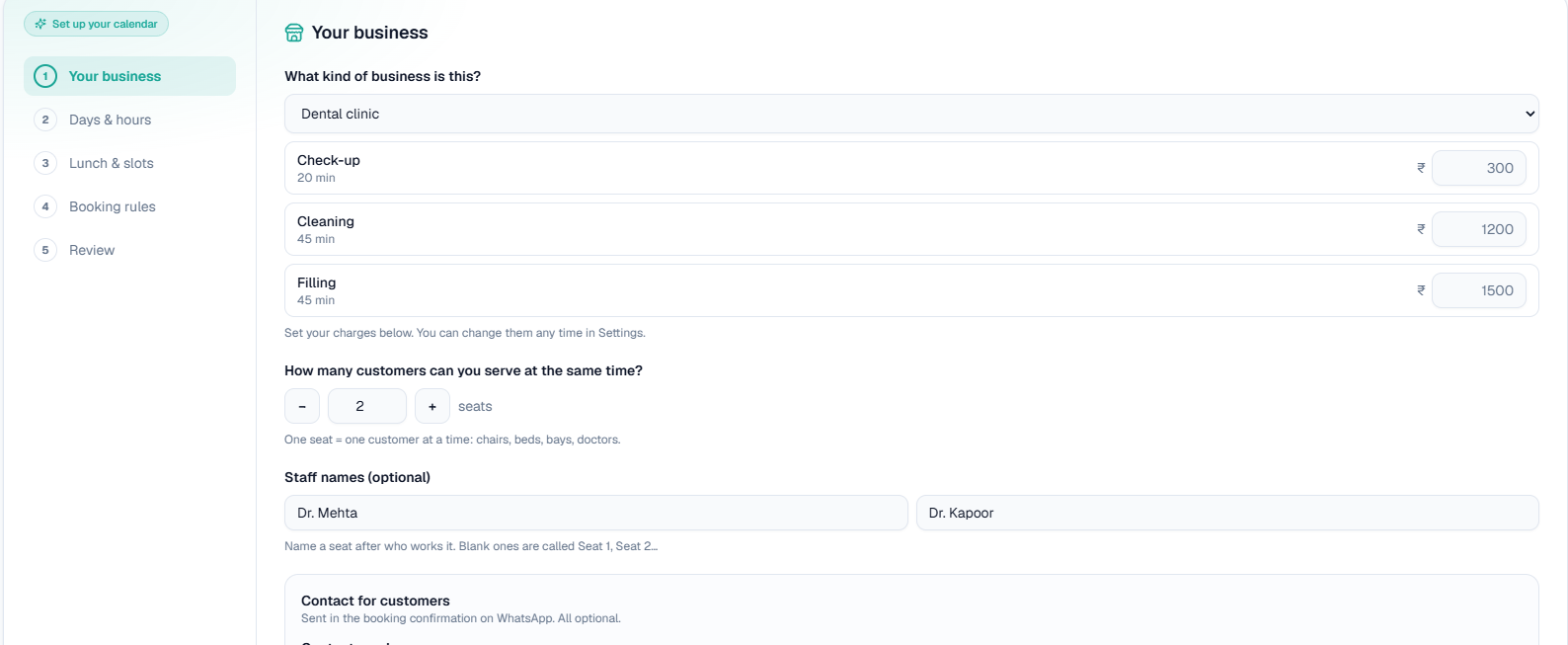
- Pick what kind of business it is from the list (salon, clinic, dental, spa, gym, car wash and more, or Something else). That gives you a starter list of services, each with its time.
- For each service, choose how long it takes (every service starts at 15 minutes; pick anything from 5 minutes to 4 hours) and type your charge in the ₹ box beside it.
- Choose how many customers you can serve at the same time. One seat is one customer at a time: a chair, a bed, a bay or a doctor.
- Optionally, name each seat after the person who works it (for example "Dr. Mehta"). Blank ones are called Seat 1, Seat 2 and so on.
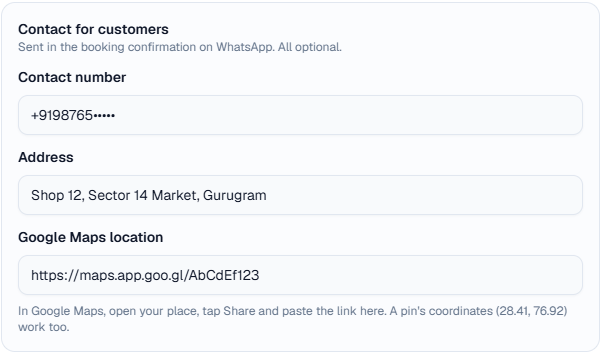
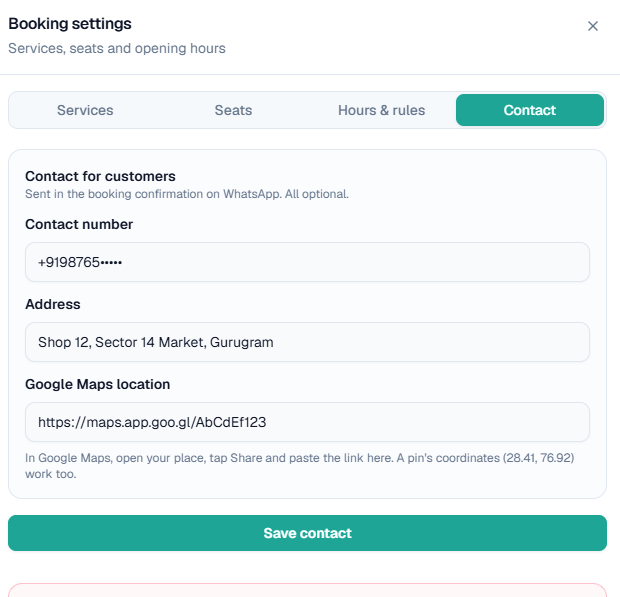
- Fill in Contact for customers: your contact number, address and Google Maps location. These go to the customer in the booking confirmation on WhatsApp. For the location, open your place in Google Maps, tap Share and paste the link here. All three are optional.
Days & hours
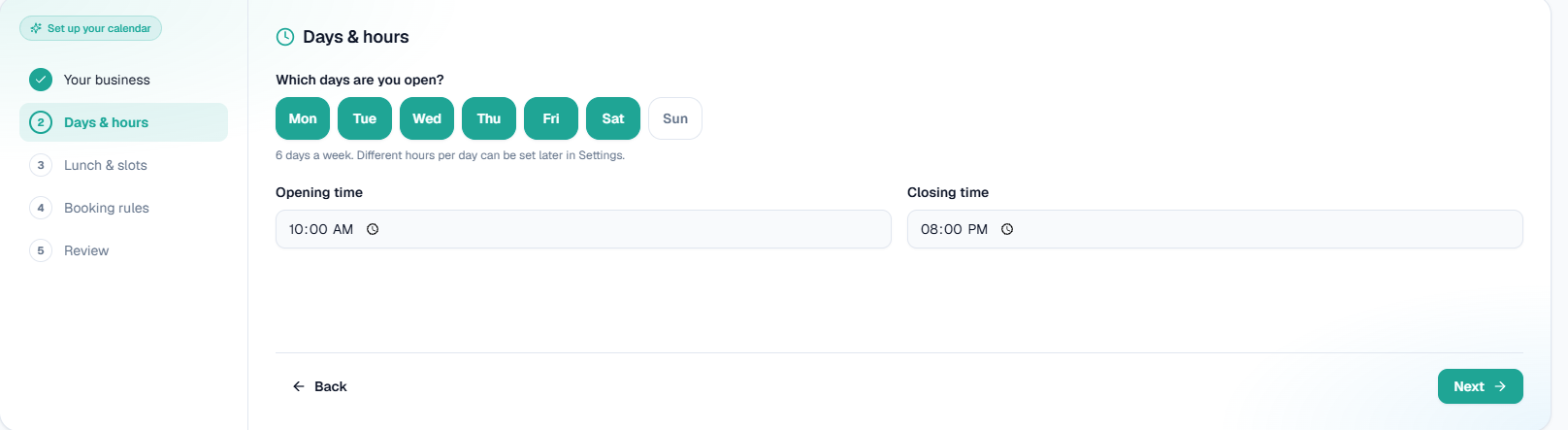
Tick the days you are open (all seven are ticked to start with) and set the opening and closing time. Different hours for different days can be set later in Settings.
Lunch break
Set your lunch break, if you take one.
You are not asked for a slot length: booking times are offered every your shortest service's length. If your shortest service takes 15 minutes, customers can start at 10:00, 10:15, 10:30 and so on, and a longer service simply takes several of those. To change it, open Settings > Hours & rules.

Note: Nothing is ever offered during your lunch break: not on screen, and not by the AI on a call.
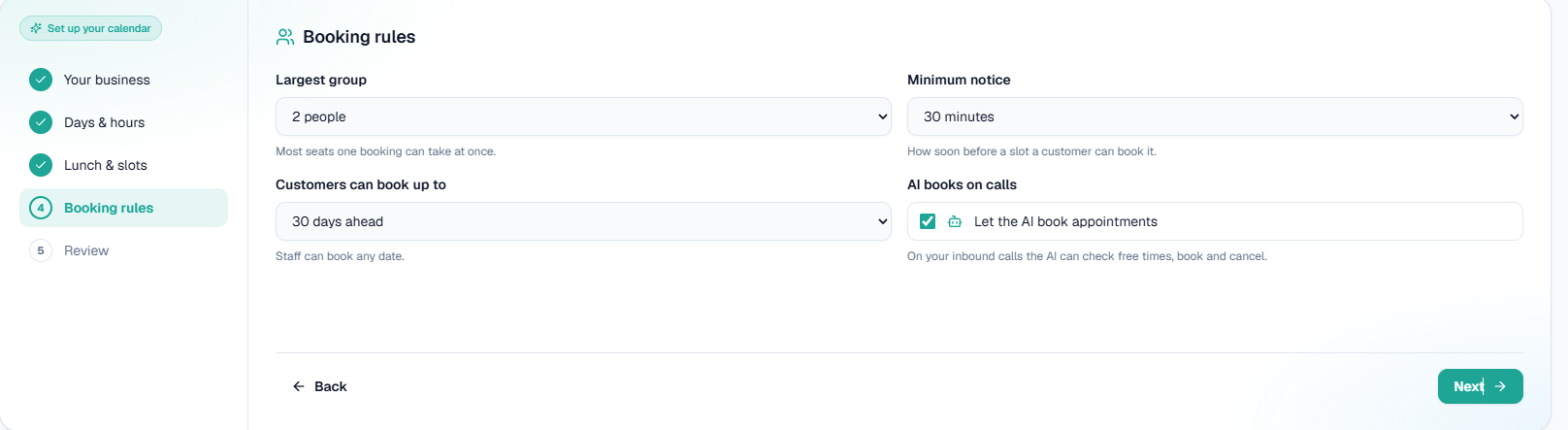
Booking rules
- Largest group: the most seats one booking can take at once.
- Minimum notice: how soon before a slot a customer can book it. Your staff can always book any time.
- Customers can book up to: how many days ahead.
- AI books on calls: whether the AI on your inbound calls can check free times, book, move and cancel.
Reminder rules
How a customer with a confirmed booking is reminded. Each channel has its own timing, and Off switches it off:
- WhatsApp reminder: a message this long before the booking (30 minutes to 1 day; 3 hours to start with).
- Reminder call: the AI rings, says the service and time, and asks if they are coming. Off to start with; each call is charged like a visit reminder call, and skipped when your wallet cannot cover it.
- Calls start at: the earliest time of day a reminder call may ring. A 10 am booking with a 3-hour reminder is not a 7 am call: it waits until this time, or is skipped if the booking is by then.
A booking made inside the reminder window gets the confirmation only, never a reminder on top. Only Live bookings with a mobile are reminded, and only while the booking is still confirmed. You can change all three later in Settings > Reminders.
Reminder calls also appear on the Visit reminders page with an Appointment label, where you can stop one with Don't call before it rings. On the reminder call, the customer's answer lands on the booking: Confirmed on reminder call, Said not coming, or Reminder call: no answer. A "not coming" is a flag for your team; the call never cancels a booking. If the customer asks on that call to move or cancel, the AI does that the same way as on any call.
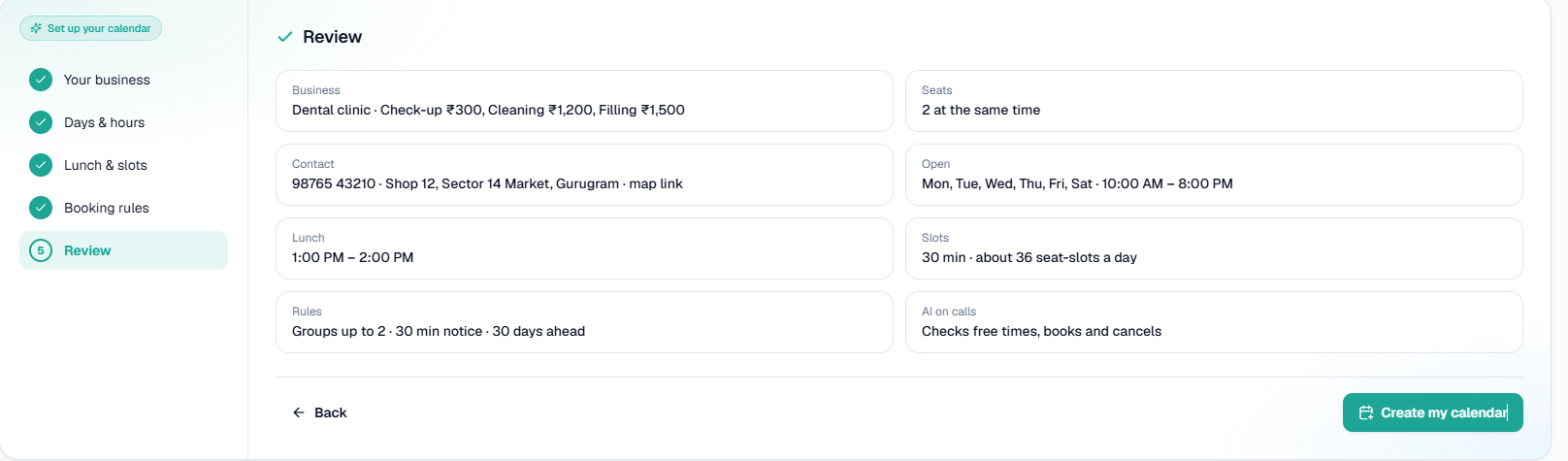
Review
Check everything on one page, then click Create my calendar.
Step 2: Book a customer
Click New booking, or click any free slot on the calendar to start with that seat and time filled in. Then answer, top to bottom:
- What service? Pick one. The price and length show on it.
- Customer. Type their name and mobile, or click Came before? Find them to pick someone who booked before.
- How many people? One person, or more for a group. A group takes that many seats at the same time.
- When? Pick a day, then a time.
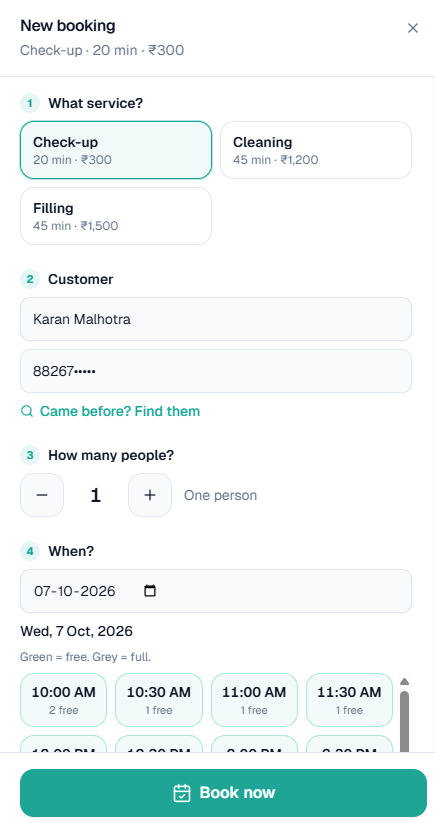
- Green times are free and show how many seats are free; grey times are full.
- Who will serve? Anyone who is free, or a particular seat or staff member.
- Is it confirmed? Yes, Not yet, or Walked in now.
- Click Book now.
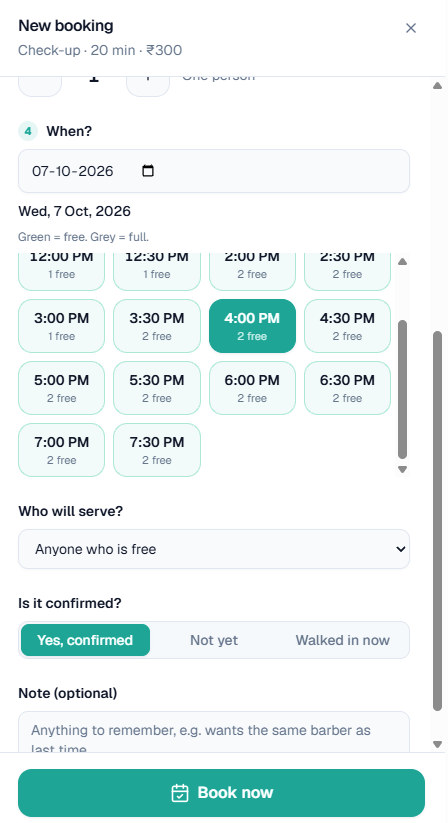
Two bookings can never hold the same seat at the same time: if someone else books the last seat a moment before you, you are told to pick another time.
Step 3: Read the calendar
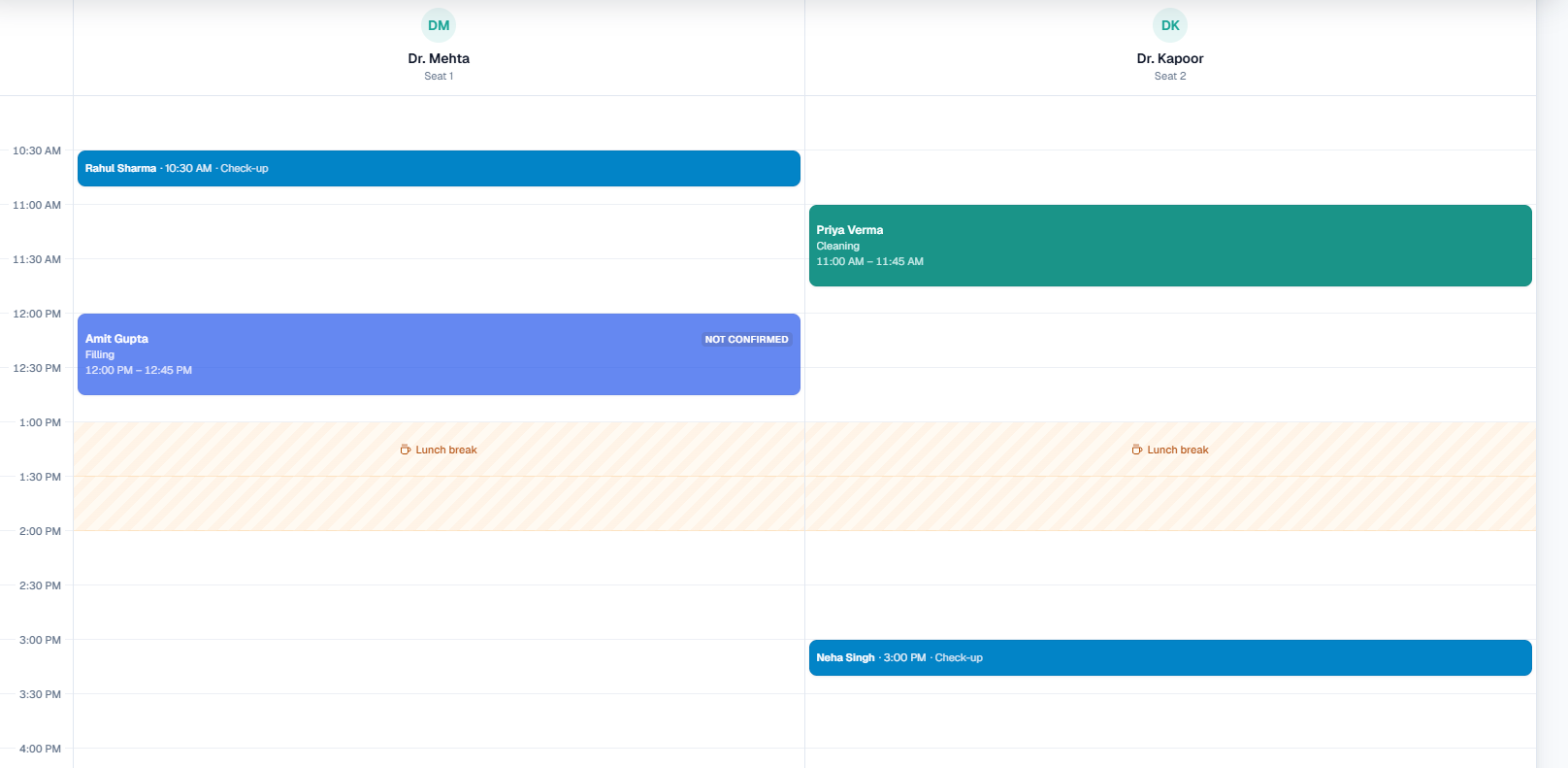
- Day shows a column for each seat. The red line is the time now, and today opens scrolled to it. Click a booking to open it.
- Week and Month show how busy each day is. Click a day to open it.
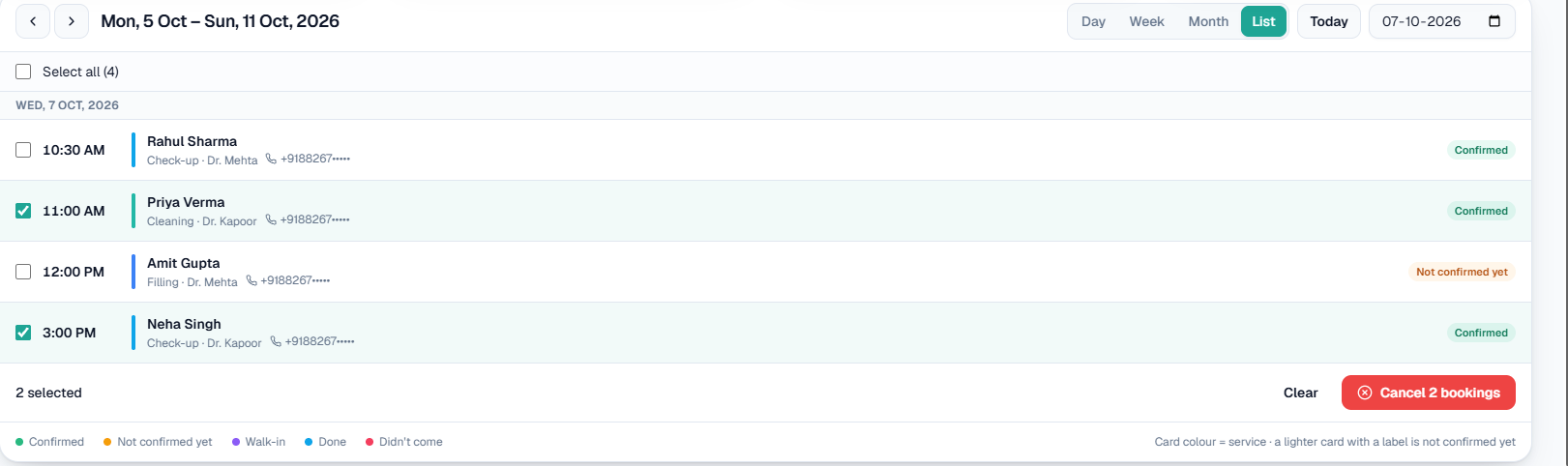
- List shows the week's bookings one under another, with a tick box on each.
The colour of a booking is its service, like an event in Google Calendar. A booking not yet confirmed is a lighter shade with a Not confirmed label, and a small robot icon marks a booking the AI made on a call. A short booking fits on one line: name, time and service.
Step 4: Change, move or cancel
Click a booking to open it.
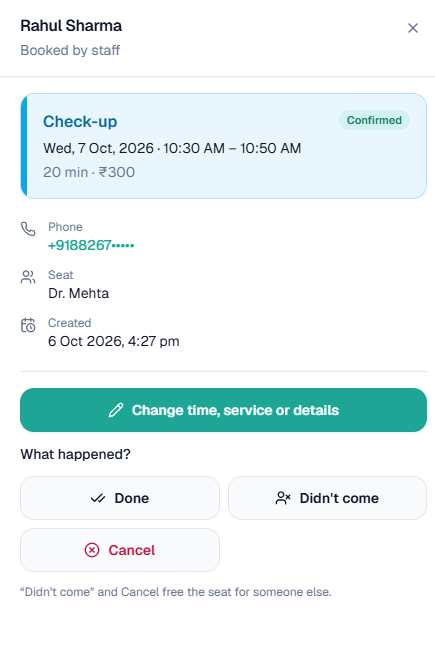
- Change it: click Change time, service or details. The booking's current time shows as current; pick another and click Save changes. It keeps the same seat when that seat is free at the new time.
- Move it: on the Day view, drag a booking to another time or another seat and let go. If that seat is taken, it stays where it was and you are told why.
- What happened: choose Customer confirmed, Done, Didn't come or Cancel. Didn't come and Cancel free the seat for someone else. A cancelled booking cannot be reopened; book again instead.
- Cancel many at once: open List, tick the bookings (or Select all for a whole closed day), then click Cancel N bookings and confirm.
Step 5: Change your services, charges and contact
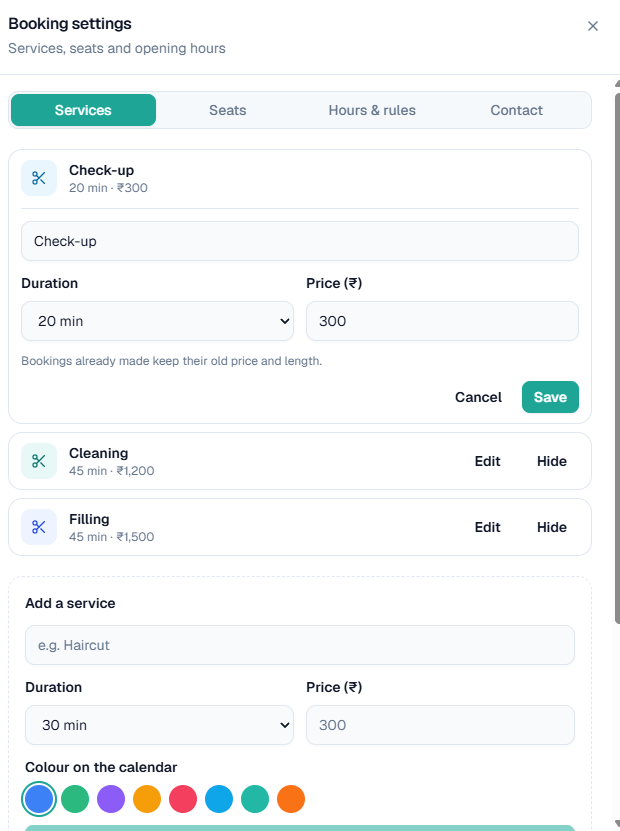
Click Settings. It has five tabs: Services, Seats, Hours & rules, Reminders and Contact.
- Services: click Edit next to a service to change its name, length or charge, then Save. Bookings already made keep the price and length they were made with. Hide stops offering a service without deleting it. Add a new service at the bottom.
- Seats: add a seat, rename it, or turn one off.
- Hours & rules: different hours and a different break for each day, the slot length, and the booking rules.
- Reminders: the WhatsApp reminder, the reminder call and the time calls may start (see Reminder rules above).
- Contact: the number, address and map link sent in the booking confirmation. After Save contact, the boxes show exactly what customers will be sent, for example the number with +91.
WhatsApp to the customer
The customer gets a WhatsApp from MySA's WhatsApp number:
| When | What it says |
|---|---|
| A booking is confirmed | Service, date, time, your address, your Google Maps location, and your number to call |
| The time is changed | The new date and time, and your number |
| Before the booking, at the time you set in Settings > Reminders (3 hours to start with) | A reminder with the service, date and time |
| A booking is cancelled | Which booking, and your number to book again |
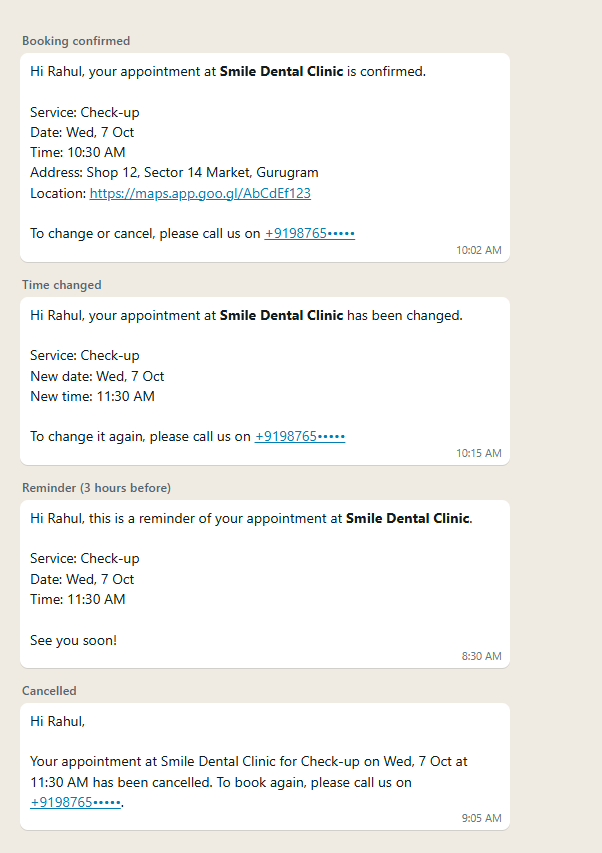
- Messages go from Live bookings only, to the mobile on the booking.
- A Not confirmed yet booking gets no message until you confirm it. A walk-in gets none.
- Cancelling the same booking twice sends one message. Delete calendar sends nothing.
- A detail you have not filled in under Contact shows as "-" in the message.
The AI books on calls
When AI books on calls is on, the AI on your calls (inbound and outbound) can:
- check free times for the service, day and number of people the customer asks for, offering the nearest free times if the one they want is taken;
- book once the customer chooses a time and gives their name. Their phone number is taken from the call, so the AI never asks for it;
- move the caller's own upcoming booking to a new day or time. It is the same booking at the new time, not a cancellation and a new booking;
- cancel the caller's own upcoming booking when they ask.
Before moving or cancelling, the AI asks in one short question why, and saves the answer on the booking's notes ("Cancelled (from the call): …", or "Moved from 10-10-2026 10:00 am — reason: …"). It only ever touches bookings made for the number the customer is calling from.
Bookings made this way appear on the calendar straight away, marked with the robot icon, and the customer gets the confirmation on WhatsApp. If a customer agreed a time on a call but it was not booked, it appears as Not confirmed yet with a note, for your team to confirm.
For the AI to book, all of these must be true:
- It is your Live workspace.
- Appointments is switched on for your business.
- Your calendar has at least one seat and one service.
- AI books on calls is ticked in Settings > Hours & rules. If you run more than one business on your account, choose there which ones: All my businesses, or Only these with the businesses ticked. The AI then books only on calls for those businesses. With one business there is nothing to choose.
- Inbound is switched on for the number customers call (see Inbound calls).
Note: The AI follows your customer rules (minimum notice, how far ahead, lunch break) and makes at most one booking per call.
Your bookings in a Google Sheet
Every booking can be written to a Google Sheet you own. On the Appointments page click Connect Google Sheet (it appears once your calendar exists) and follow the three steps in the dialog:
- Make a Google Sheet, or use one you already have. It can be empty; we build the tab.
- In that sheet press Share, paste the address shown in the dialog, change Viewer to Editor, then Send. Viewer is not enough.
- Paste the sheet's link from your browser's address bar and click Connect sheet. Every booking you have goes in straight away.
The sheet gets a Bookings tab with one row per booking from the last 365 days plus everything coming up, most recently booked first: booking id, date, start, end, customer, phone, service, duration, price, people, status, source, notes (including the reason a caller gave), booked on, cancelled on, rescheduled on and last updated. Dates and times are real values, so you can sort and filter by month. Each day's rows are shaded in turn; a confirmed booking is in bold green, a moved one in amber, a cancelled one in red.
The tab is rebuilt from your calendar within a minute of any change, so it always matches the calendar.
Warning: Anything you type into the Bookings tab is replaced at the next rebuild. Keep your own notes in a tab of your own.
- A cancelled booking stays in the sheet with status Cancelled. Rows disappear only when you delete the calendar, or once a booking is more than a year old.
- One sheet serves one workspace. The same workbook may also hold your Lead Feed and Tags tabs.
- To switch to another sheet, open the dialog, share the new sheet with the address shown first, then paste its link and connect. Disconnect stops writing to any sheet.
- The button in the header shows a green dot when connected and a red one when the sheet has stopped taking our writes, usually because the share was removed. Open the dialog for the exact reason.
Delete the calendar
To start again from nothing, open Settings and, at the bottom under Danger zone, click Delete calendar. It shows how many bookings will go (and how many are still coming up), plus your seats, services and hours. Type DELETE to confirm.
Warning: This cannot be undone, and customers are not messaged. Call anyone with an upcoming booking yourself. Only this workspace's calendar is deleted: Test and Live are separate.
Related
- Inbound calls for setting up the number your customers call.
- Visit reminders for a reminder call before a visit.
- DND for the hours you never want calls placed.