

Help
Getting help
You can get help inside the console from the Support Assistant, by raising a support ticket, from your account manager, or by email and phone.
Ask the Support Assistant
The fastest answer is usually in the console itself.
- Look at the bottom of the left menu, under Support.
- Click Help.
- The Support Assistant opens in the bottom-right corner, over the page you are on.
- Type your question in plain words, for example "how do I add a test number".
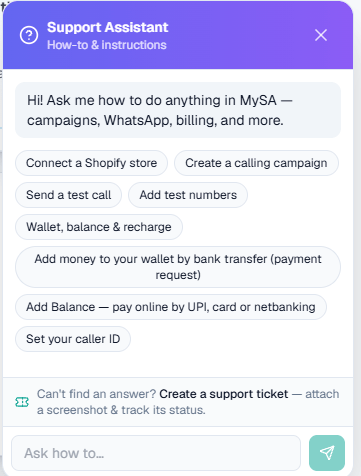
On this screen: the Support Assistant opens with suggested questions — connecting Shopify, creating a calling campaign, sending a test call, recharging the wallet and more. Tap one, or type your own in Ask how to…. At the bottom, Create a support ticket is always one tap away.
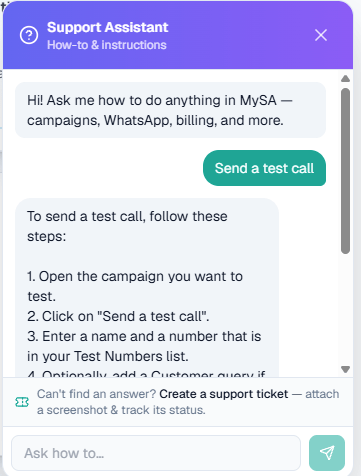
On this screen: the assistant answers in numbered steps, from MySA's own help content, and ends with a button that opens the right page — here Open Send a test call.
Because the assistant opens over your current page, you can ask about the screen in front of you without leaving it. Its answers often include a link straight to the right page.
Tip: On the login page there is no menu, so a round help button sits in the bottom-right corner instead. It helps with sign-in questions only, such as a forgotten password or a code that has not arrived.
Raise a support ticket
If the assistant cannot solve your problem, raise a ticket from the same window.
- Open Help under Support.
- Click Create a support ticket at the bottom of the chat.
- Enter a Subject, a brief summary of the issue.
- Under Describe the issue, say what happened and what you expected.
- Optionally click Attach a screenshot (optional).
- Click Submit ticket.
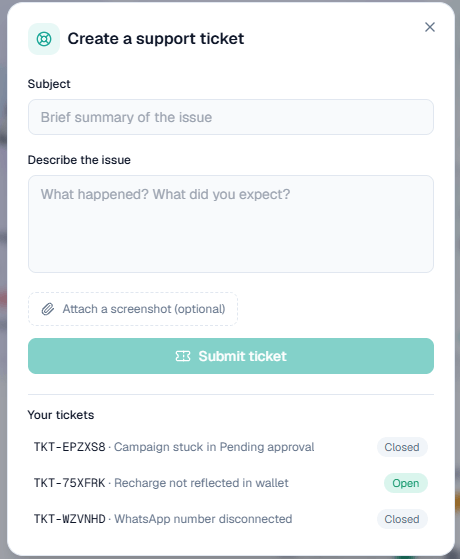
On this screen: Subject and Describe the issue, an optional screenshot, and Submit ticket. Below, Your tickets lists every ticket you have raised with its reference (TKT-…) and whether it is Open or Closed.
You get a ticket reference. Your tickets are listed under Your tickets in the same window, where you can track the status and reply. The team typically responds within about 24 hours.
Tip: A good ticket names the page, the campaign or call involved, the time it happened, and what you expected to see. A screenshot saves a round of questions.
Contact your account manager
If an account manager has been assigned to your workspace, Account Manager appears under Support in the left menu. It shows their name, phone and email, so you can contact them directly. You do not need to raise a ticket first.
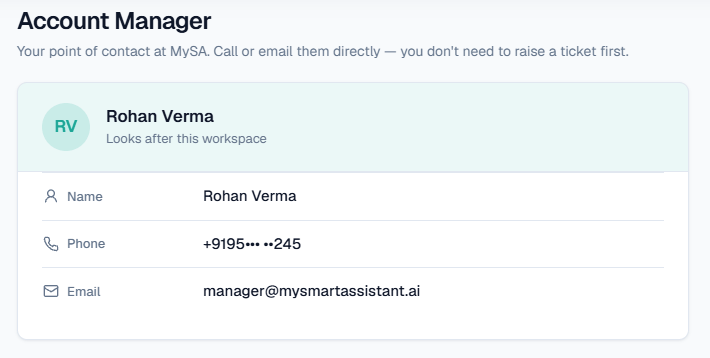
If you do not see Account Manager in the menu, nobody has been assigned to your workspace yet. Use a ticket or email instead.
Email and phone
| Channel | Details |
|---|---|
| support@mysmartassistant.ai | |
| Phone | +91 80715 80455 |
The phone line is answered by MySA's own AI assistant, so you can hear the product at work while you get help.
Note: If support resets your password, the password they give you is temporary and only takes you to the Choose a new password screen. If you see that screen without expecting it, email support@mysmartassistant.ai before entering anything.
Your profile, settings and notifications
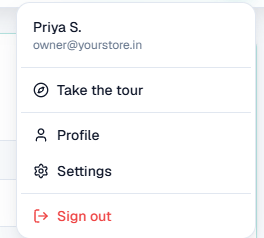
The avatar at the top right opens your menu: Take the tour replays the product walkthrough, Profile is where you change your name, photo, password and two-factor sign-in, and Settings holds your account, billing details and workspace options.
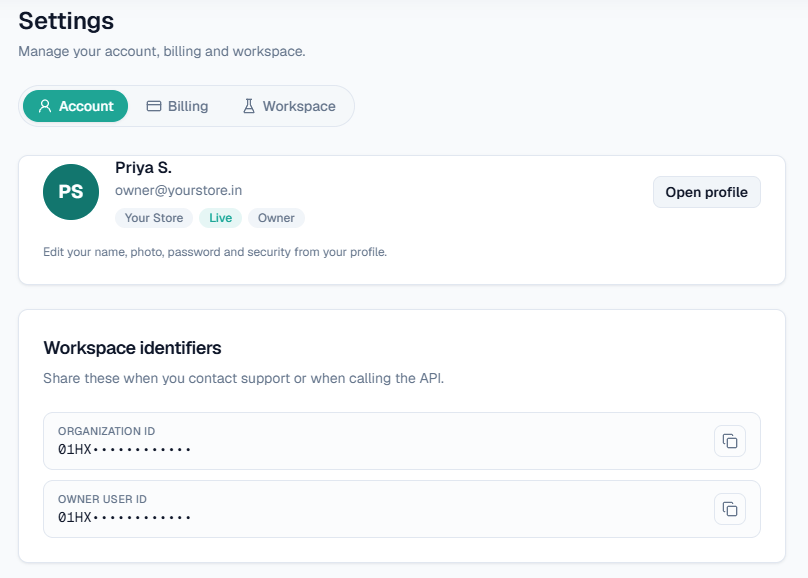
Settings → Account also shows your Organization ID and Owner user ID — share these when you contact support or call the API.
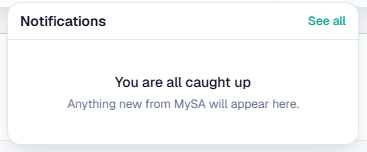
The bell next to it holds product notifications that still need your attention; See all opens the full list under Resources → Notifications.
Before you contact us
Many questions are answered in these pages:
- Calls not going out: check that the campaign is published and approved, that your wallet has balance, and your Do Not Disturb hours.
- Test calls not ringing: the number must be on your Test Numbers list. See Test calls.
- A feature missing from the menu: some features are switched on per workspace, and some appear only in Live or only for the Owner. See Team & roles.
- Billing and invoices: see Wallet & pricing and Invoices & GST.
- Common questions: see the FAQ.