
Channels
Social templates
The template library holds ready-made Instagram and Facebook messages, from text with images to swipeable card carousels with buttons, and sends them on a keyword, a comment or when the AI picks the right one.
Open the template library
Open Template library on the Instagram or Facebook page. Both pages open the same library, and one template can serve both channels.
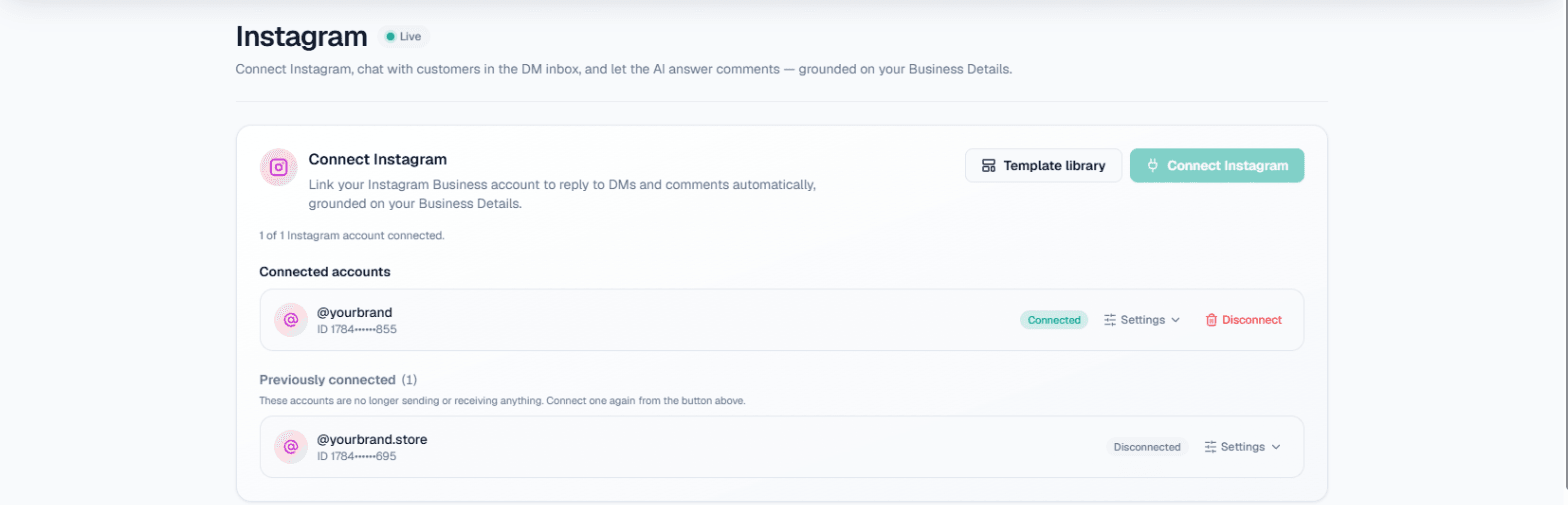
The library has two tabs:
- Your templates lists every template you have saved, active or draft. Each one shows its type, its status and the channels it is on.
- Samples has six ready-made templates to start from: Product catalogue, Current offer, Store location, Contact us, Price list and Order online.
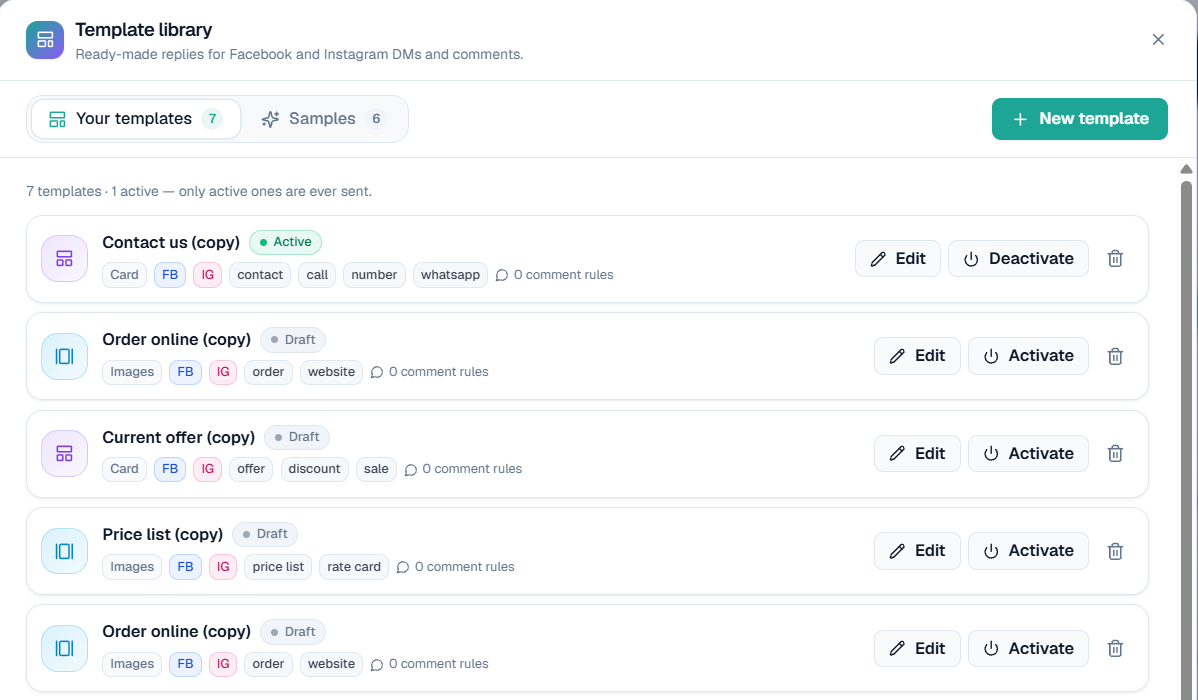
On this screen: the Your templates tab. The line at the top counts your templates and how many are active. Each row shows the template's name and status (Active or Draft), its type, the channels it is on (FB, IG), its keywords and how many comment rules it has, with Edit, Activate or Deactivate, and the bin icon to delete it. New template is at the top right.
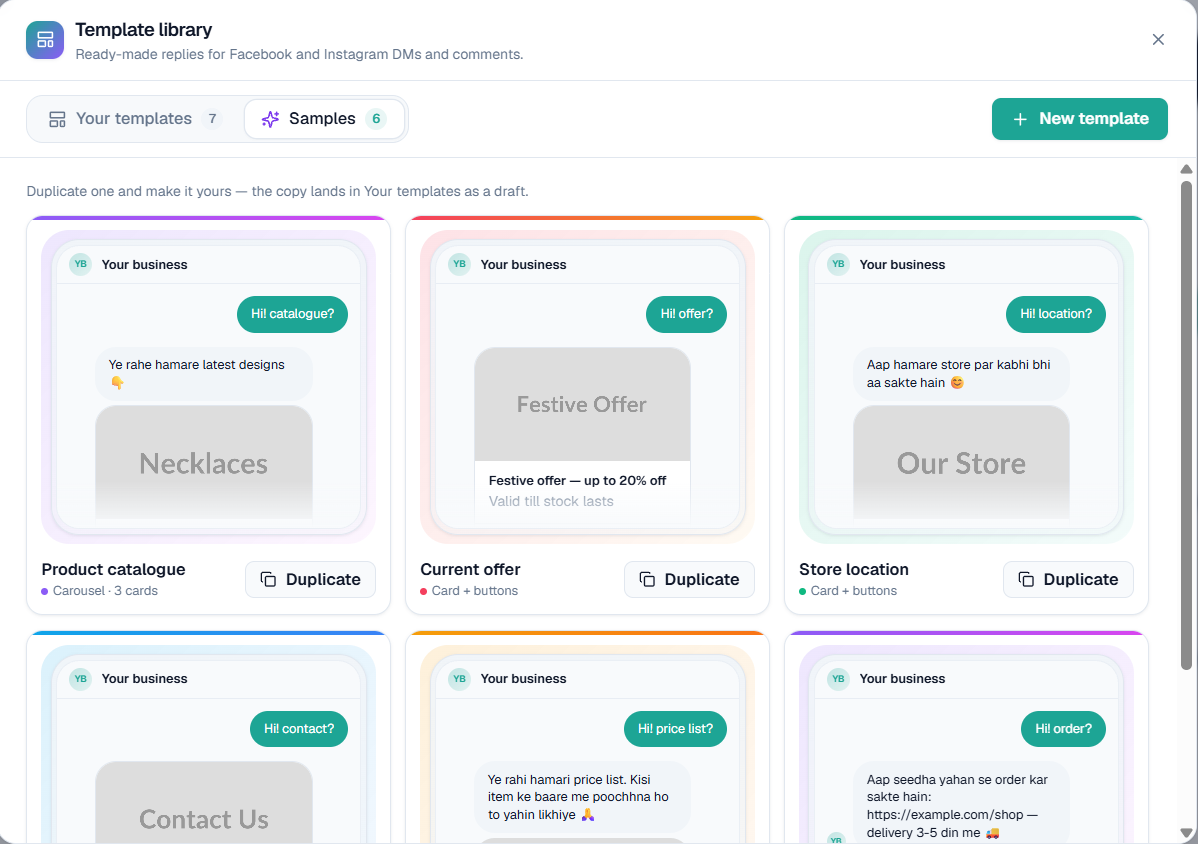
On this screen: the Samples tab. Each sample shows how it looks in the customer's chat, its type, and Duplicate to copy it into Your templates as a draft.
Start from a sample
The quickest start is a sample:
- Open the Samples tab, find one you like and click Duplicate. The copy lands in Your templates as a draft.
- Change it to your own text, images, links and numbers, and check the Live preview.
- Click Save & activate, or Save as draft to finish later.
Note: Only active templates are ever sent. You can Activate or Deactivate a template from Your templates at any time.
Create a template
Click New template to build one from scratch. The editor is on the left and the Live preview on the right shows exactly what the customer gets on their phone.
- Give it a Name. Customers never see it; it is how your team finds the template in the library.
- Pick the Type: Text + images, or Card + buttons (see Template types).
- Fill in the message:
- Text + images: write the Message text and add up to 3 image links with Add image.
- Card + buttons: give each card a Title (up to 80 characters), an optional Subtitle (up to 80) and an optional Image link, then Add button for up to 3 buttons. Add card adds another card, up to 10.
- Under When it is sent, add Keywords (DM) (up to 10; press Enter or comma after each) and write When to send (for the AI).
- Under Channels, tick Facebook, Instagram or both.
- Click Save & activate, or Save as draft.
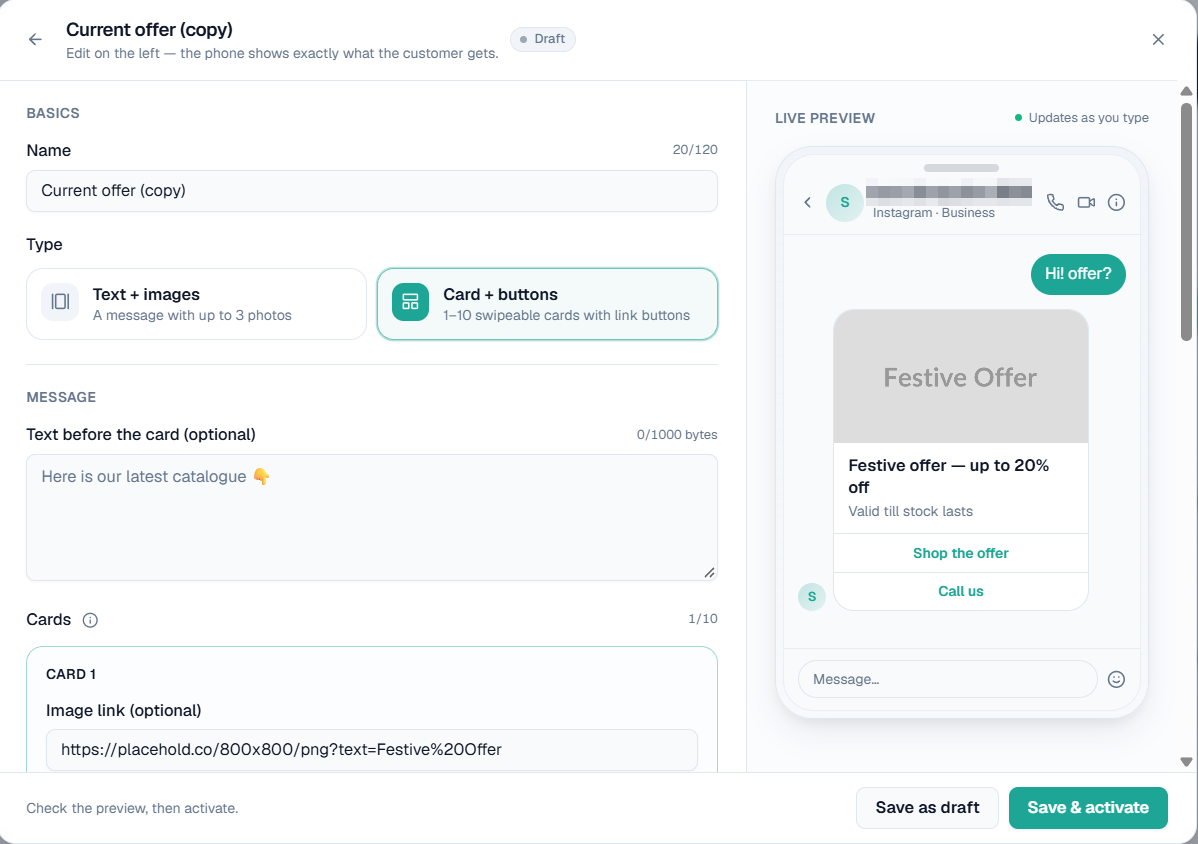
On this screen: the editor for a Card + buttons template. On the left, Basics holds the Name (up to 120 characters) and the Type; Message holds the optional Text before the card and the Cards, each with its image link, title, subtitle and buttons. On the right, Live preview updates as you type and shows the chat as the customer sees it. Save as draft and Save & activate are at the bottom.
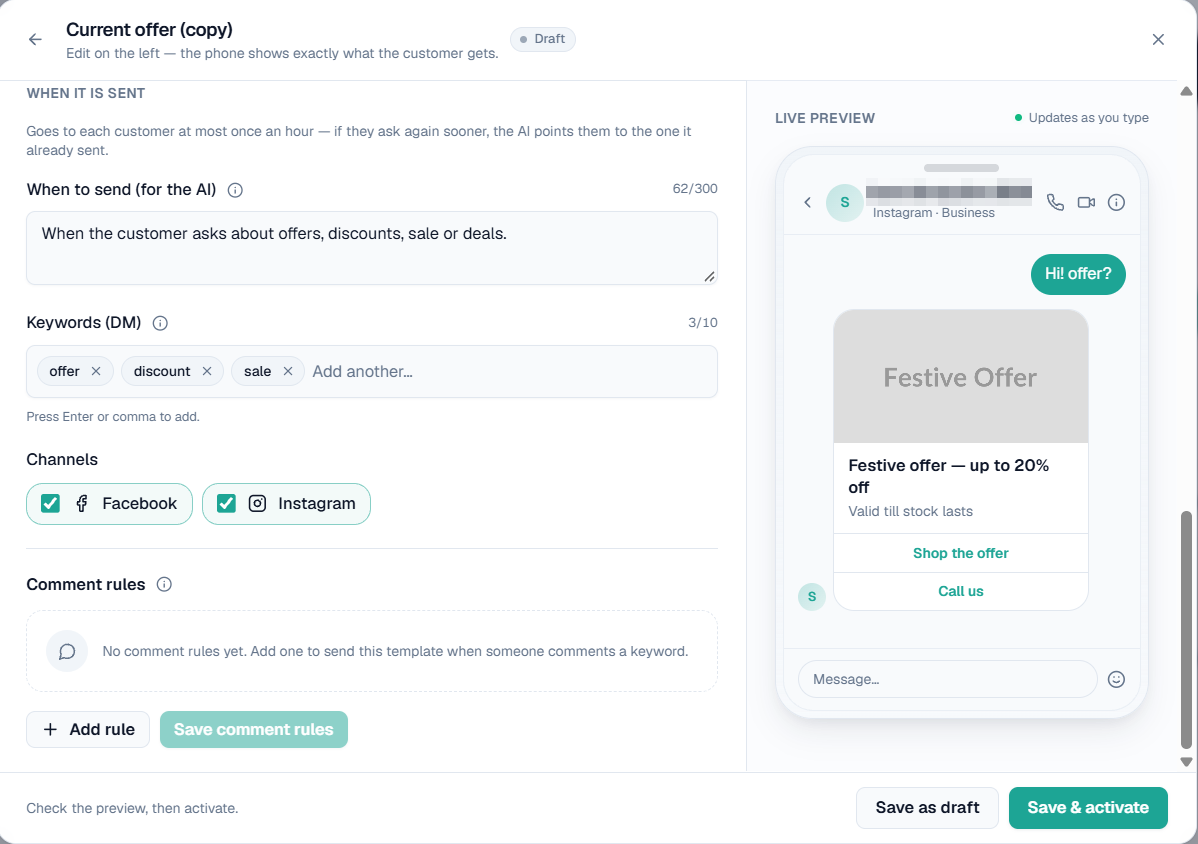
On this screen: further down the same editor. When it is sent holds When to send (for the AI) (up to 300 characters) and the Keywords (DM), with a reminder that a template goes to each customer at most once an hour. Channels ticks Facebook and Instagram. Comment rules lists the rules for this template, with Add rule and Save comment rules.
To change a template later, click Edit on it in Your templates, then Save changes. If you close the editor with unsaved changes, it asks before throwing them away.
Manage your templates
From Your templates you can:
- Edit a template.
- Activate a draft, or Deactivate an active template so it stops being sent without losing it.
- Delete a template. You are asked to confirm, and a deleted template cannot be brought back.
Changing templates needs Facebook or Instagram management access. Without it the library is read-only: Edit becomes Preview, and you can look at every template but not save one. See Team & roles.
Template types
| Type | What it contains |
|---|---|
| Text + images | A text message with up to 3 images. |
| Card + buttons | A card with an image, a title and up to 3 buttons. Add up to 10 cards and the customer swipes through them as a carousel. |
Images and link buttons use https links. They are not uploads.
Buttons
A button's text can be up to 20 characters. Each button on a card can be one of three kinds:
- Link opens a web page.
- Call rings your number. Type it with the country code, for example +91 98765 43210. On Messenger it rings you straight away. Instagram has no call button, so it opens a small page with your number and a Call now button.
- WhatsApp opens a WhatsApp chat with that number.
Warning: The "Contact us" sample has both a Call and a WhatsApp button with the placeholder +91 00000 00000. Replace it with your own number before you activate it.
When a template is sent
A template can go out in three ways.
- Keywords (DM) — if a customer's message contains one of the template's keywords, the template is always sent.
- When to send (for the AI) — describe when it fits. During a chat, the AI sends it right after its reply when the customer asks for exactly that.
- Comment rules — a keyword commented on one post, or on all posts, sends the template to the commenter as a private message.
Meta allows one private message per comment. For a comment rule, a card template goes as the card, and a text-and-images template sends its text.
Set up a comment rule
Comment rules live inside the template, under Comment rules in the editor. Save the template first (as a draft is enough); a new, unsaved template cannot have comment rules yet.
- Click Add rule.
- Pick the Platform and the Account. The account must be connected first; see Instagram & Facebook.
- Pick a post from your recent posts, or All posts.
- Type the Keyword to look for in the comment, for example price.
- Click Save comment rules.
If someone on your team changed the same rules while you were editing, you are told before anything is overwritten, and Save anyway replaces their version with yours.
Built-in limits
- The same template is not sent to the same customer twice within an hour. If they ask again sooner, the AI points them to the one already sent.
- Messages can only go out inside Meta's 24-hour window after the customer last wrote to you.
Tip: Give each template a clear When to send description. It is what the AI reads to decide whether a template fits the conversation.
Related
- Instagram & Facebook for connecting accounts and comment-reply modes.
- Business Details for what the AI says around your templates.
- Instagram comment to DM automation for how a keyword comment rule fits with AI comment replies.